Collect Open Exchange Rates Data into Google BigQuery

Own your Open Exchange Rates data in Google BigQuery with OWOX Data Marts. Collect up-to-date and historical currency exchange rates directly into BigQuery, control schema and refresh logic, and reuse the data across BI tools and AI Insights.

Collect Open Exchange Rates Data into Google BigQuery
Save Historical Open Exchange Rates

Save Historical Open Exchange Rates

Load Open Exchange Rates directly into your BigQuery and keep full control over structure, access, and updates.

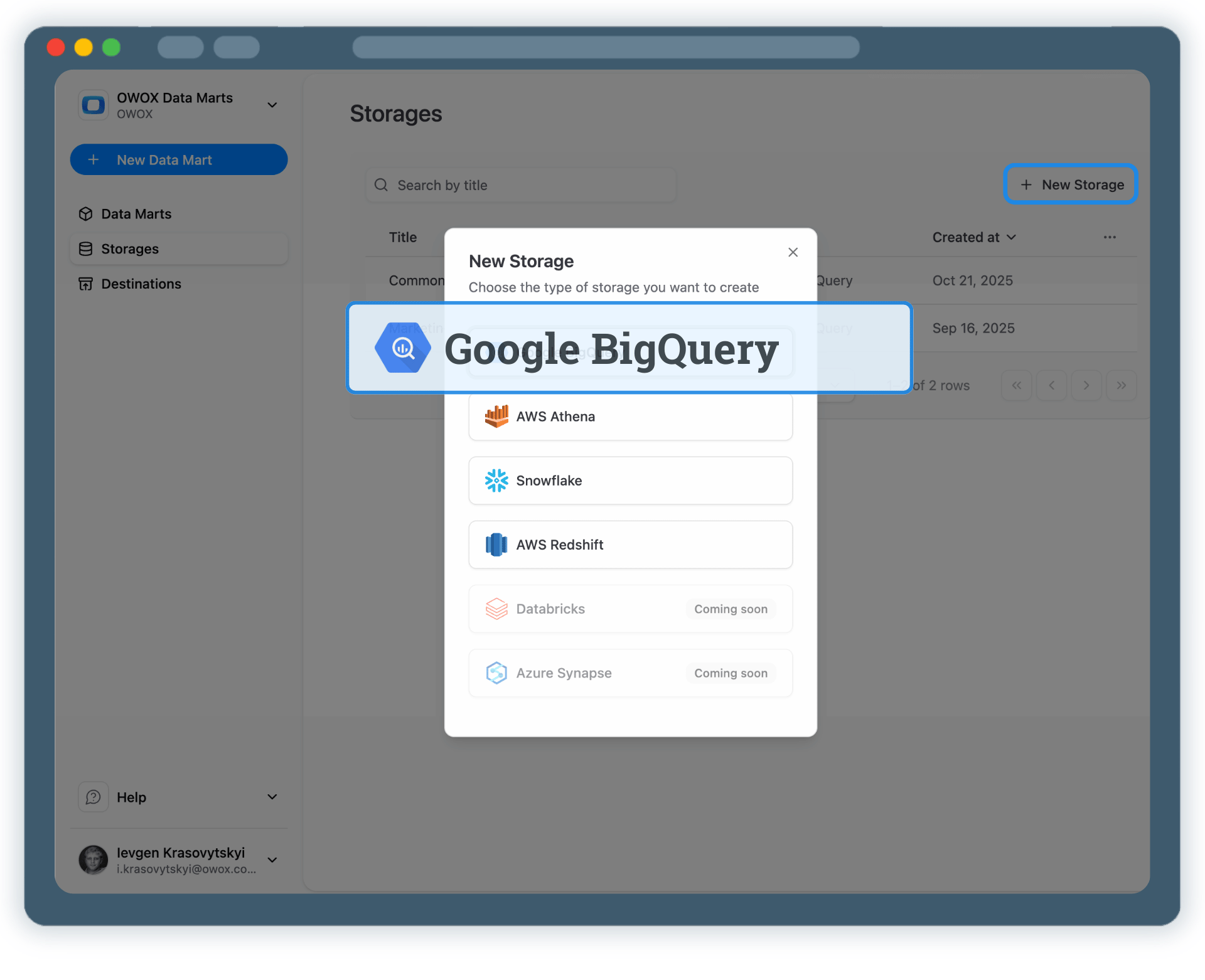
Step 1: Create a Google BigQuery Data Storage

Start by connecting your own Google BigQuery project as a data storage.

  • Use your own BigQuery project and datasets
  • Keep full ownership of exchange rate data
  • No third-party data warehouses

BigQuery becomes your single source of truth for currency and FX analytics.
Step 1: Create a Google BigQuery Data Storage
Connect BigQuery
Step 1: Create a Google BigQuery Data Storage
Step 2: Create an Open Exchange Rates Data Mart

Step 2: Create an Open Exchange Rates Data Mart

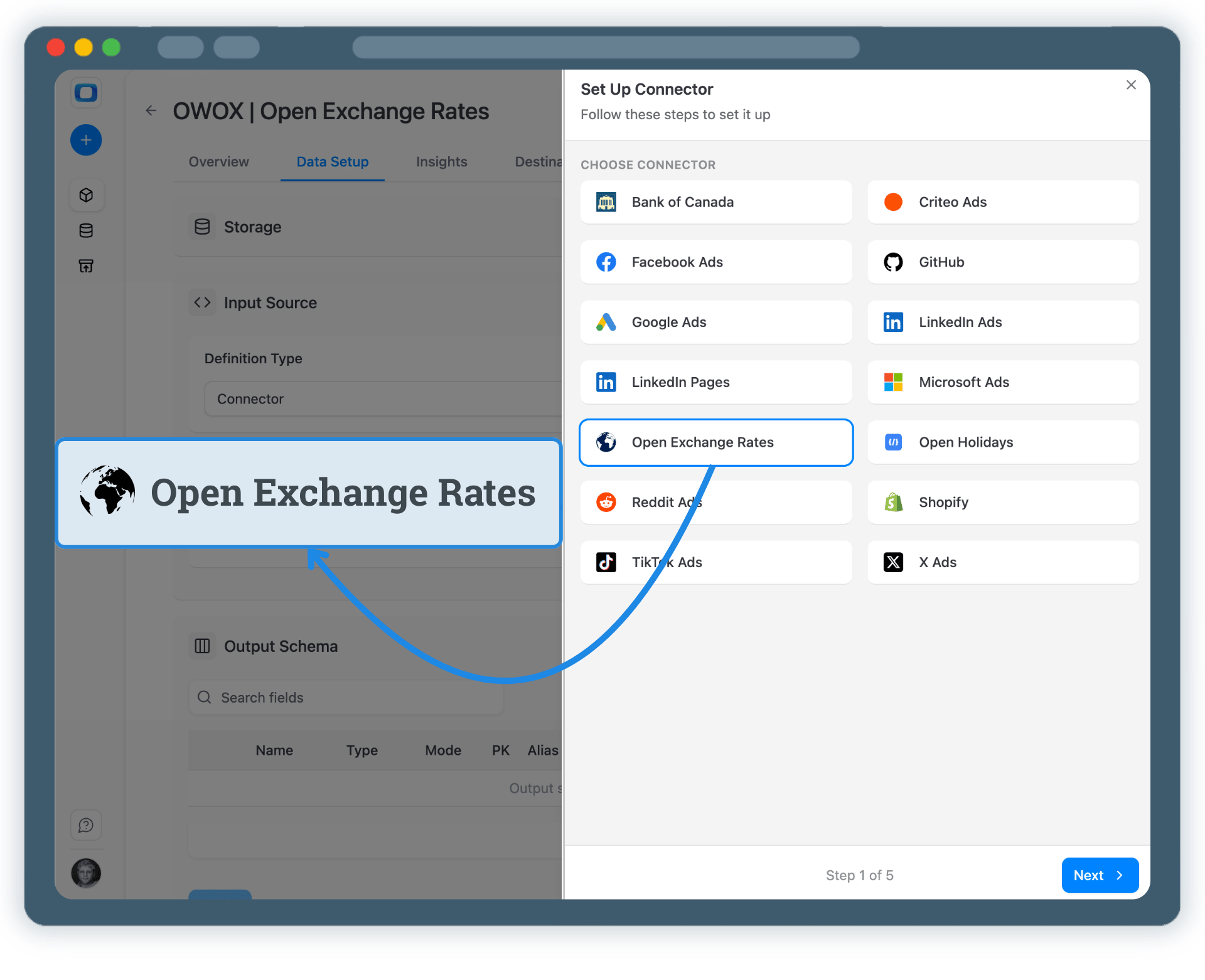
Create a new Data Mart and choose Connector as the definition type.

  • Select Open Exchange Rates as the data source
  • Provide the required API access details
  • No API coding or engineering required

This defines what exchange rate data you collect.

Step 2: Create an Open Exchange Rates Data Mart
Create Data Mart
Request a demo

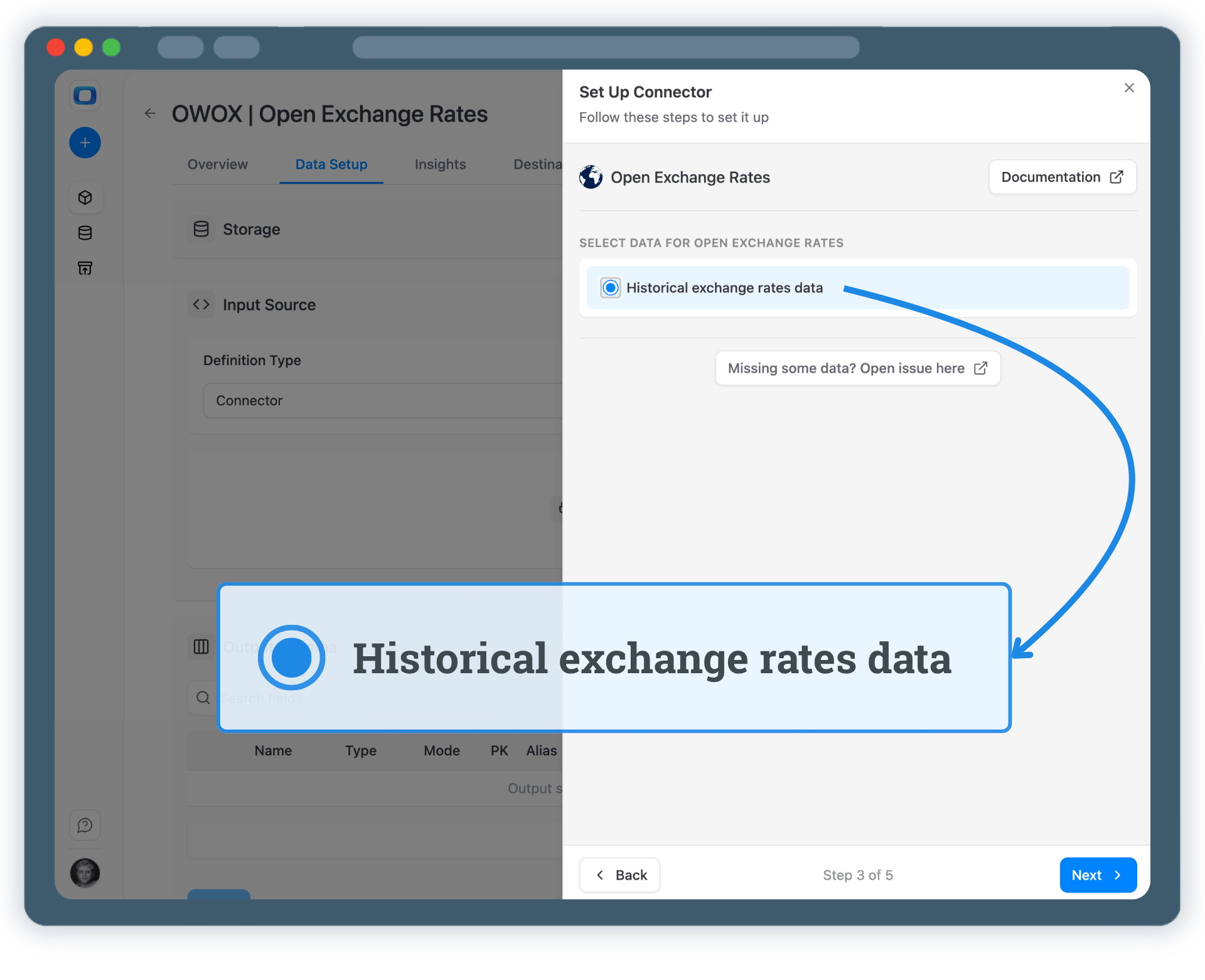
Step 3: Select Fields & Configure Data Import

Choose exactly which exchange rate data you want to store in BigQuery.

  • Select the appropriate Open Exchange Rates endpoint
  • Choose base currency, target currencies, and rate fields
  • Define the destination dataset and table name in BigQuery

Publish the Data Mart once configuration is complete.
Step 3: Select Fields & Configure Data Import
Configure Data Import
Step 3: Select Fields & Configure Data Import
Step 4: Run & Schedule Exchange Rates Data Collection

Step 4: Run & Schedule Exchange Rates Data Collection

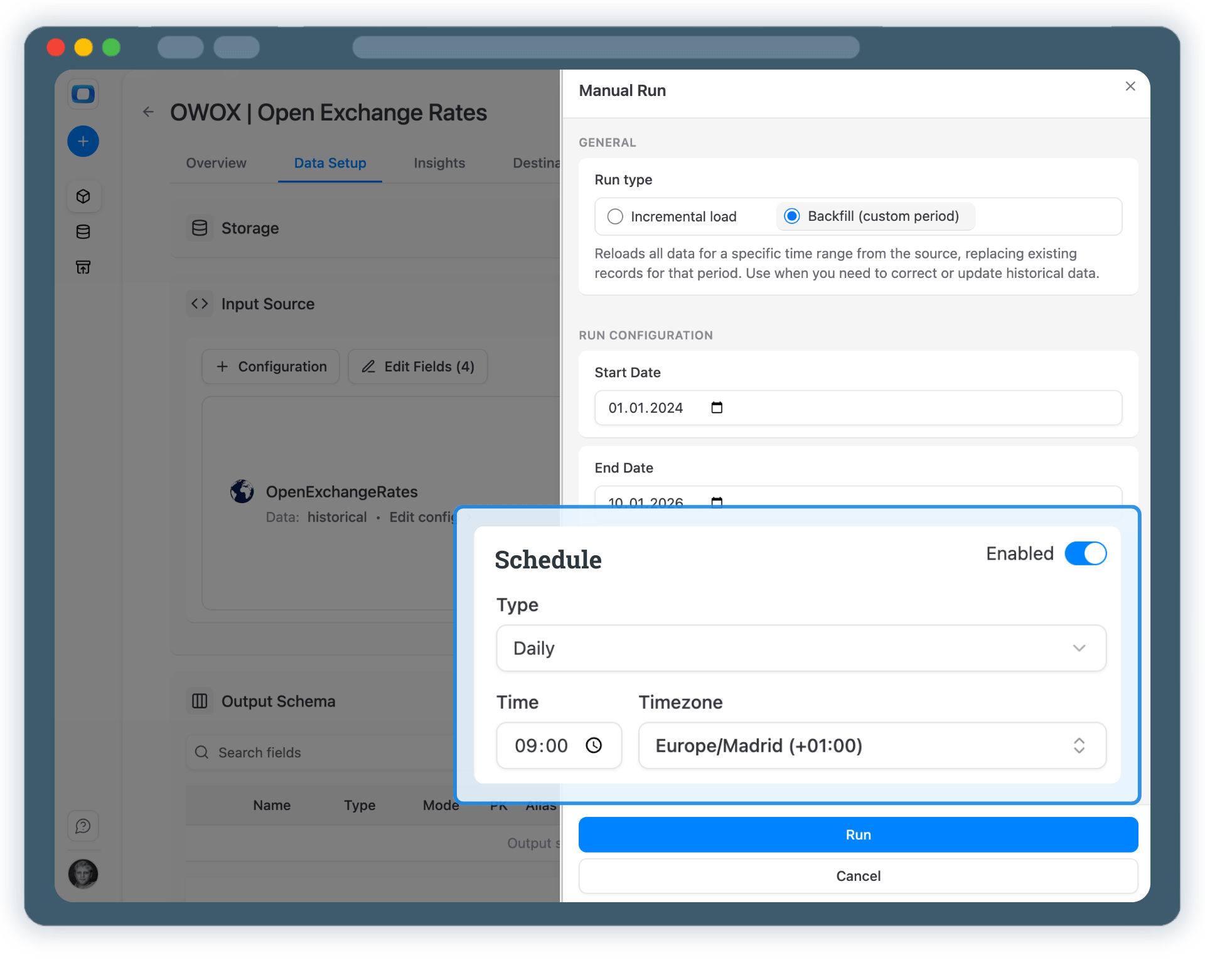
Once published, control how and when exchange rate data is imported.

  • Incremental load to import the latest rates
  • Backfill (custom period) to load historical FX data
  • All runs are logged and visible in Run History

Schedule updates to keep your BigQuery exchange rates up to date.

Step 4: Run & Schedule Exchange Rates Data Collection
Run Data Mart
Request a demo

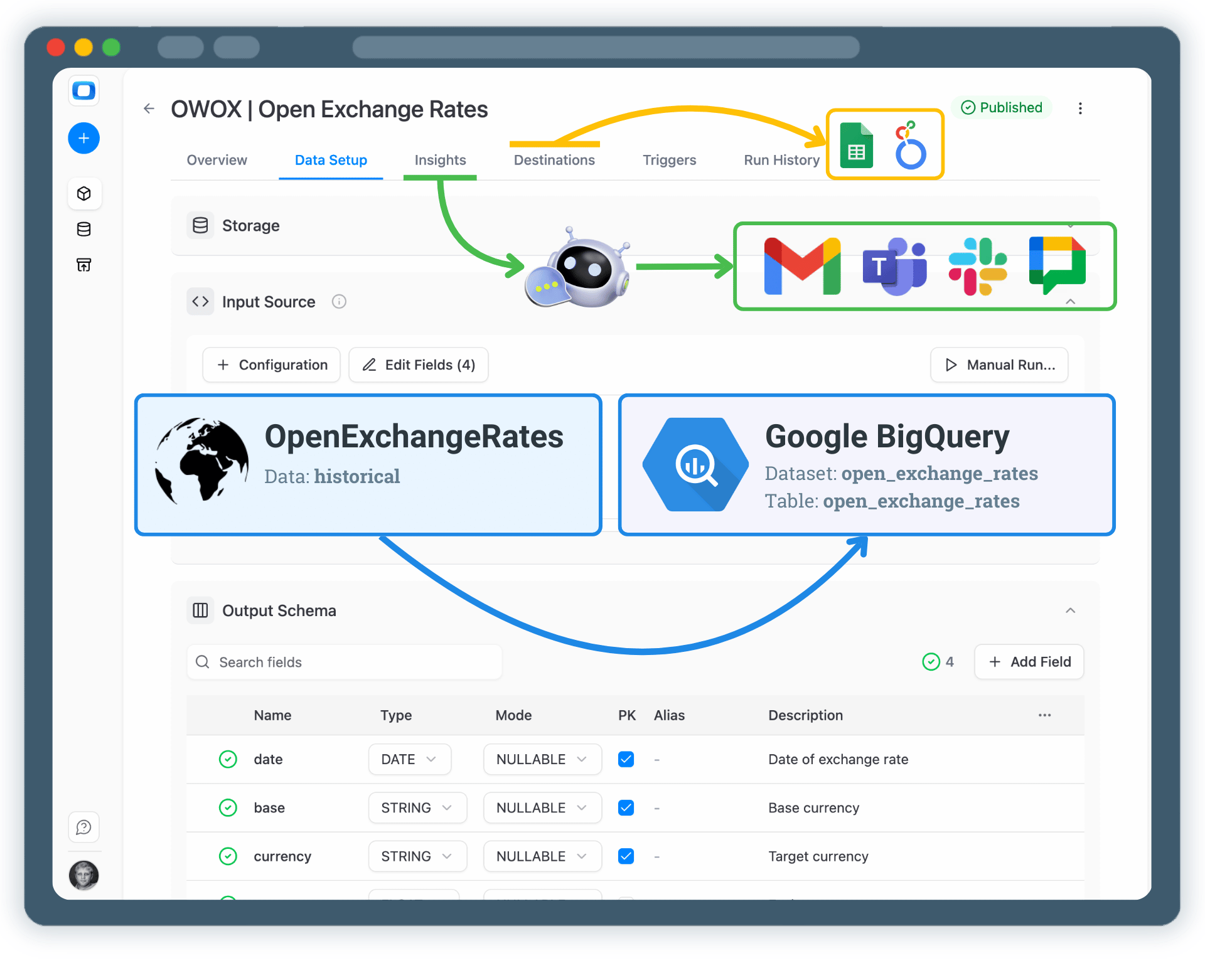
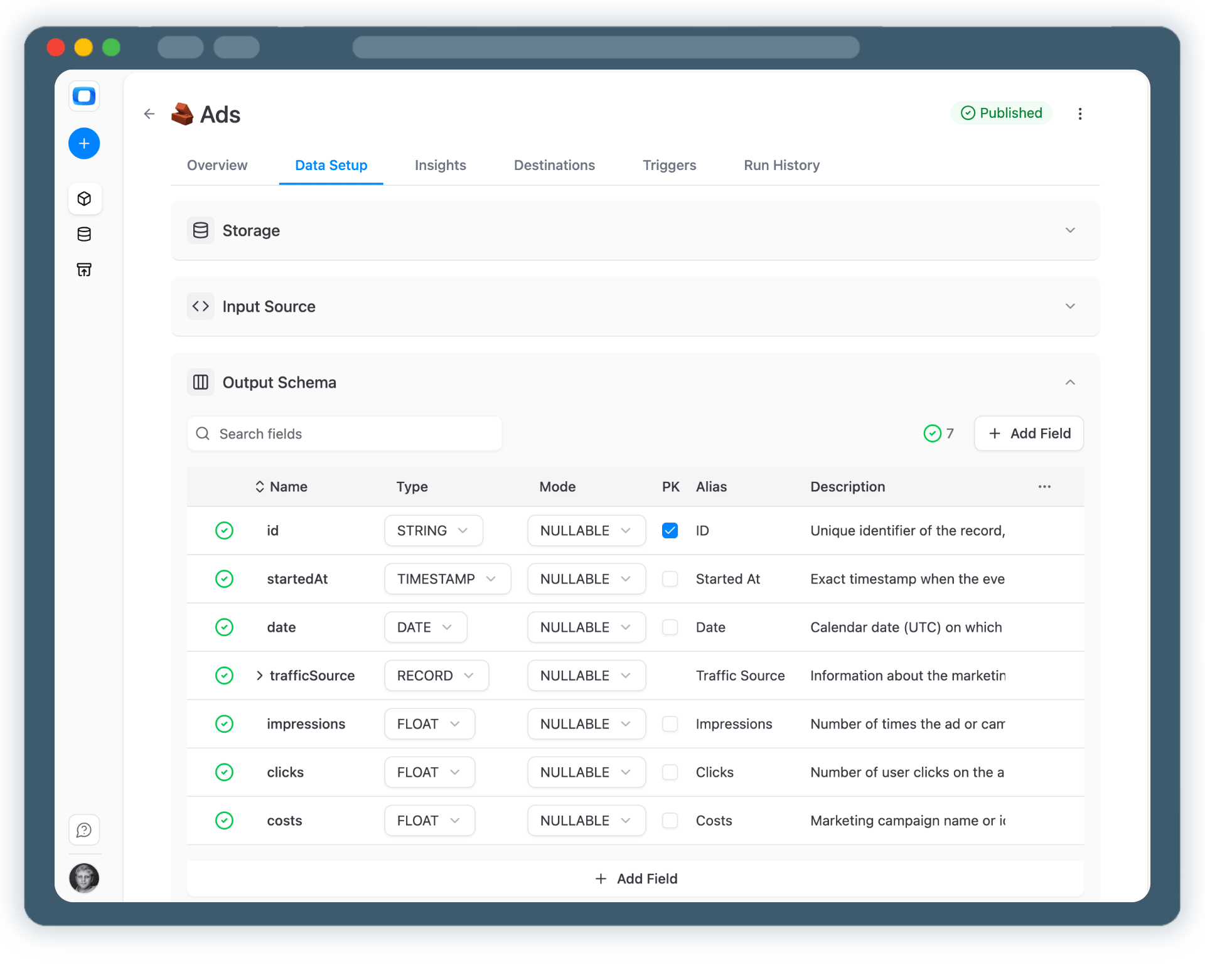
Step 5: Use Exchange Rates Data Across BI Tools & AI Insights

Your Open Exchange Rates data is now available in Google BigQuery.

  • Convert revenue, costs, or ad spend using trusted FX rates
  • Analyze data in Google Sheets or Looker Studio
  • Join currency data with marketing, sales, or finance datasets
  • Enable AI Insights for alerts or anomaly detection

One dataset. Many financial use cases.
Step 5: Use Exchange Rates Data Across BI Tools & AI Insights
Activate Your Data
Step 5: Use Exchange Rates Data Across BI Tools & AI Insights

Turn Exchange Rate Data into Business Decisions

Schedule a quick walkthrough to see how OWOX Data Marts helps you:
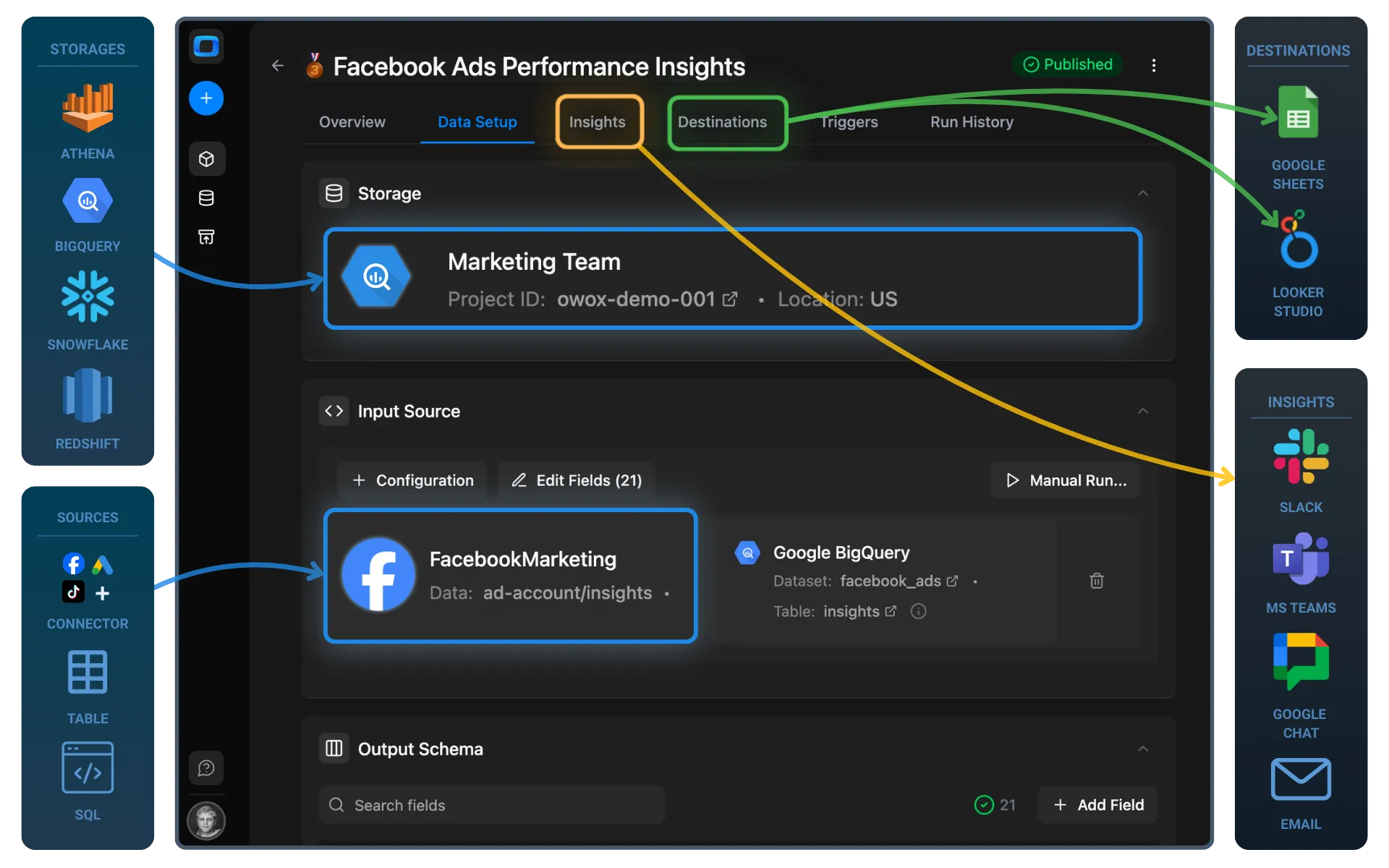
  • Collect Open Exchange Rates Data into Google BigQuery
  • Deliver trusted insights to business teams
  • Reduce reporting chaos & manual work
  • Scale analytics without adding complexity
Also, on this call, you’ll learn how data teams utilize AI Insights to always deliver what matters the most
Turn Exchange Rate Data into Business Decisions