Connect Twitter Ads Data to Google Sheets

Use Google Sheets as a reporting destination for Twitter Ads data collected with OWOX Data Marts. Collect X Ads Data into any data warehouse, then reuse it in Sheets (or Looker Studio) for reporting. Or enable AI Insights and deliver ads performance & allerts into chat tools or by email.
Connect Twitter Ads Data to Google Sheets
Analyze Twitter (& other) Ads Data in Google Sheets

Analyze Twitter (& other) Ads Data in Google Sheets

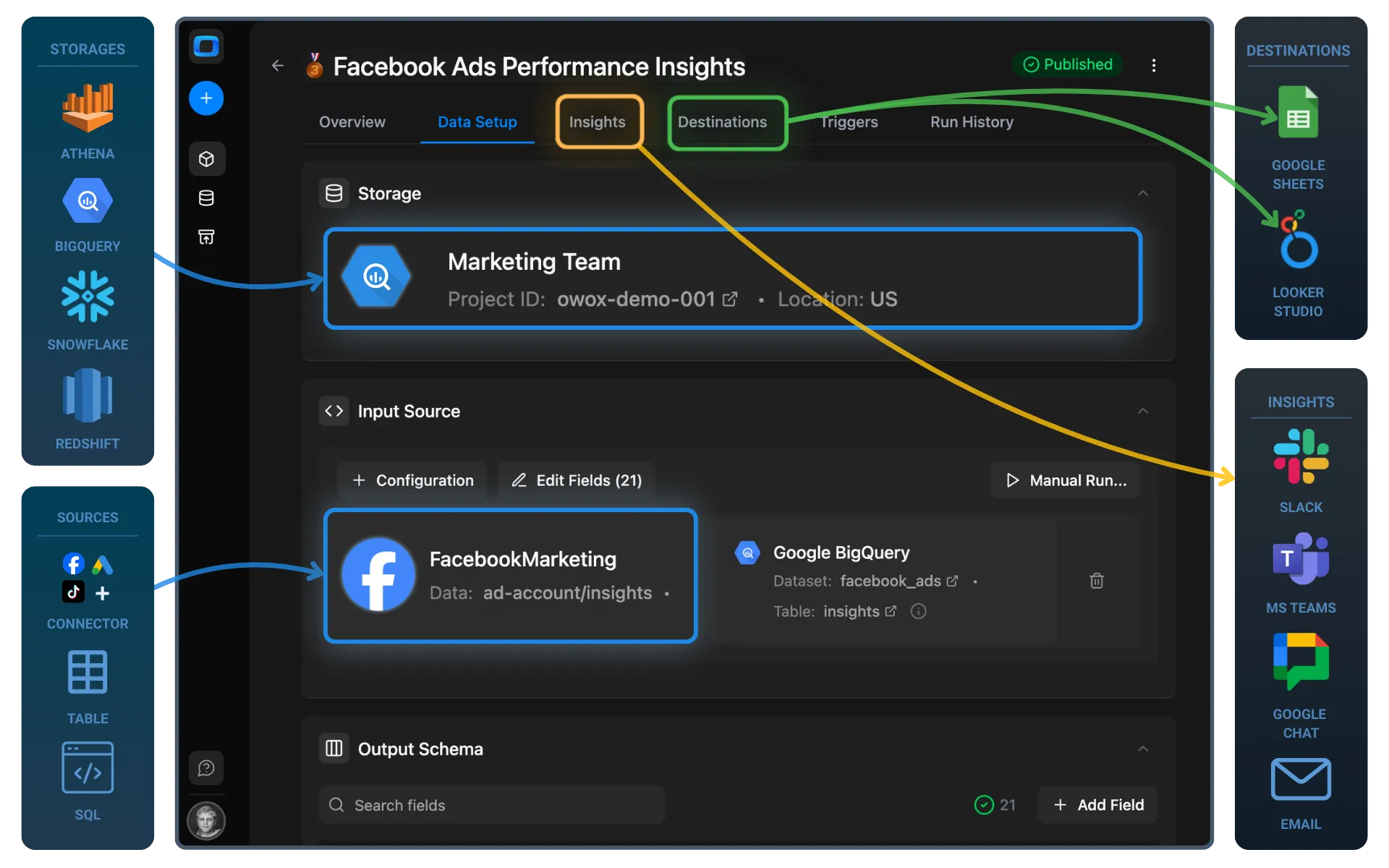
You define which data to collect, how it’s structured, and how often it updates – and reuse it across Google Sheets, BI tools, and AI Insights.

Step 1: Select a Data Storage

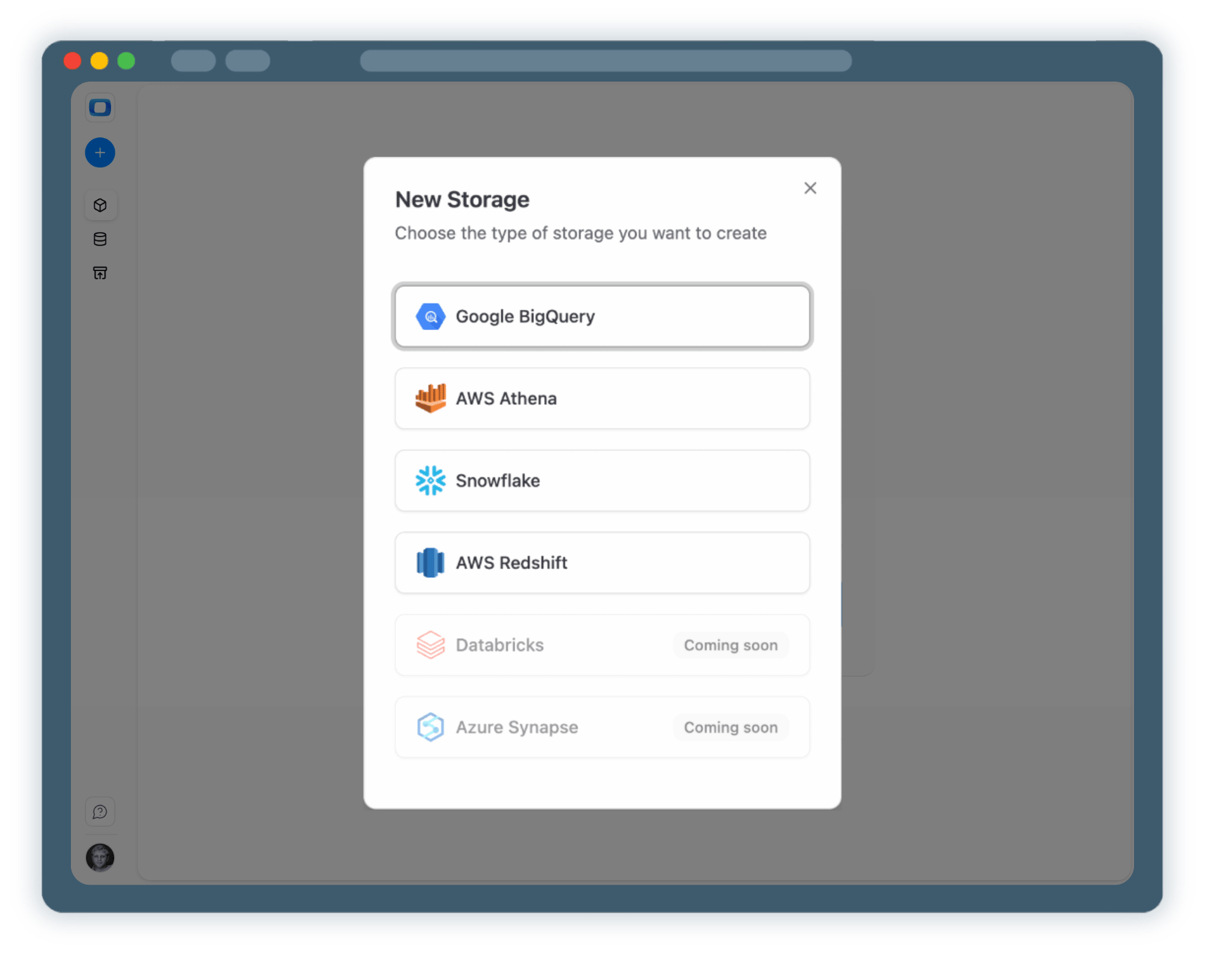
All data should have it's home. Start by connecting a data storage where your X Ads data will be stored & processed.

  • Choose a supported data warehouse such as BigQuery, Snowflake or Redshift.
  • Store raw Twitter Ads data in one central place so you can blend them later on
  • Keep full ownership and control over your data

This storage becomes the foundation for all further reporting and analysis.

Step 1: Select a Data Storage
Connect Data Warehouse
Step 1: Select a Data Storage
Step 2: Create an X Ads Data Mart

Step 2: Create an X Ads Data Mart

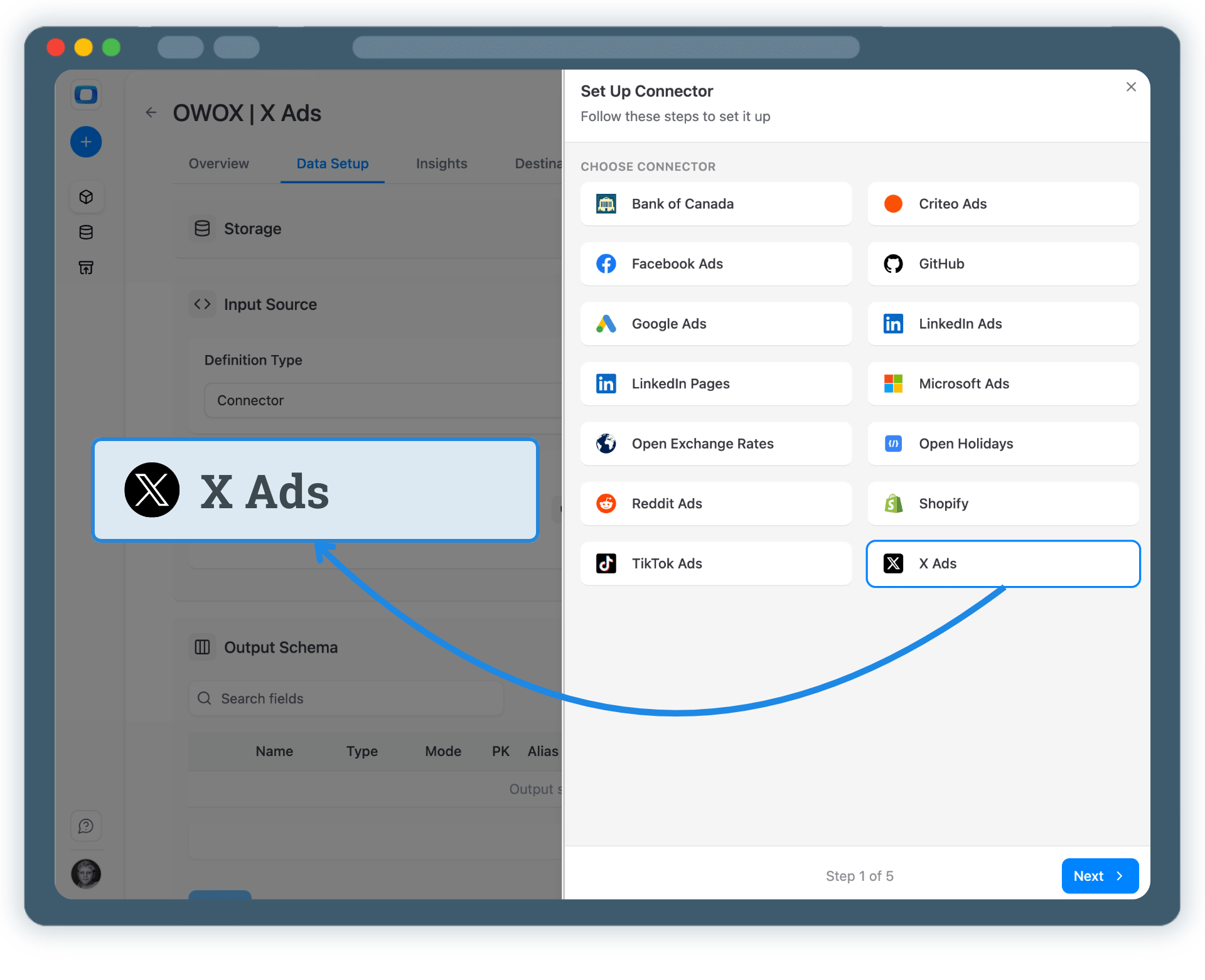
Click on + New Data Mart , choose Connector as the definition type.

  • Select X Ads as the data source
  • Specify the Account ID that you want to collect data from
  • Authorize access to your X Ads account

This Data Mart defines the logic once and makes it reusable.

Note: Use coma to separate multiple ad account IDs and collect the data together without the need to blend them afterwards.

Step 2: Create an X Ads Data Mart
Create Data Mart
Request a demo

Step 3: Select API Endpoint & Fields

Choose exactly which Twitter Ads data should be collected.

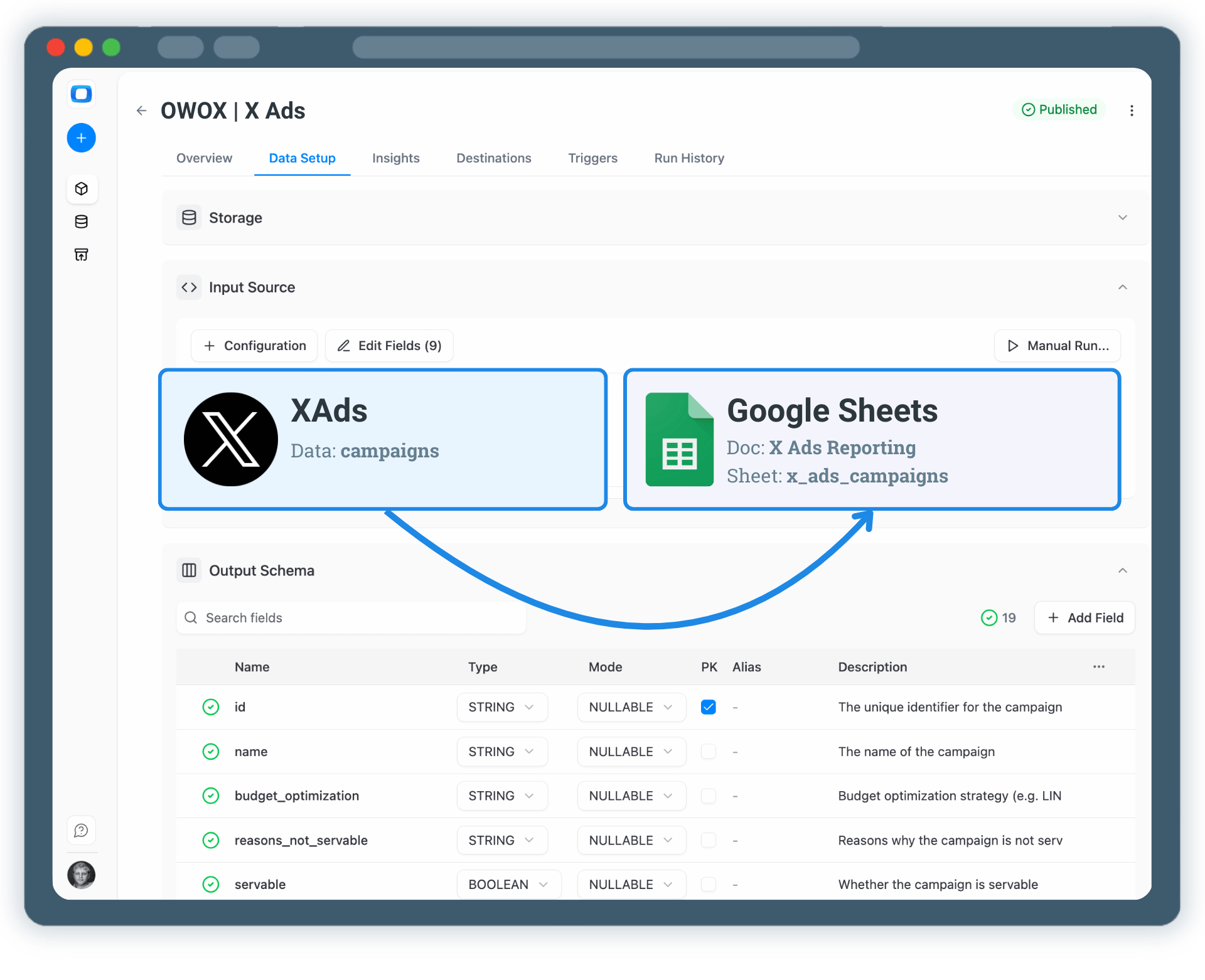
  • Select the appropriate API endpoint (for example, campaigns)
  • Choose metrics such as spend, impressions, clicks, and conversions
  • Define the dataset and table where data will be stored
  • Publish X Ads Data Mart once configuration is complete
  • Run manually & select Backfill to load historical data
  • Add a Connector run Trigger so Twitter Ads data is collected on your schedule.

No worries, you can collect more X Ads data later on & blend them to get extraordinary reporting granularity.

Step 3: Select API Endpoint & Fields
Collect X Ads Data
Step 3: Select API Endpoint & Fields
Step 4: Create X Ads Report in Google Sheets

Step 4: Create X Ads Report in Google Sheets

Now it's time to enable your Twitter Ads data in Google Sheets

  • Add Google Sheets as a Destination
  • Create a new Google Sheets Document, share it, then Create & Run your report
  • Check the box for regular updates to keep data fresh

All runs are tracked in Run History.

Step 4: Create X Ads Report in Google Sheets
Enable X Ads Data
Request a demo

Step 5: Get more from your X Ads Data

Your Twitter Ads data is now available for analysis in Google Sheets. But why stop at just this? You can reuse the same X Ads Data Mart to:

  • Enable X Ads AI Insights delivered on a schedule to Slack, MS Teams or by Email
  • Visualize X Ads Data in Looker Studio. Just tik the box on the destinations tab
  • Blend Twitter Ads data with GA4, CRM, or other ad platforms

One Data Mart – multiple destinations.

Step 5: Get more from your X Ads Data
Schedule X Ads Insights
Step 5: Get more from your X Ads Data

Turn Twitter Ads Data into Actionable AI Insights

Schedule a quick walkthrough to see how OWOX Data Marts helps you:

  • Connect Twitter Ads Data to Google Sheets
  • Deliver trusted insights to business teams
  • Reduce reporting chaos & manual work
  • Scale analytics without adding complexity
Also, on this call, you’ll learn how data teams utilize AI Insights to always deliver what matters the most
Turn Twitter Ads Data into Actionable AI Insights