
How to Collect Shopify Data into Snowflake
Learn how to automate Shopify data extraction, transformation, and analysis in Snowflake using OWOX Data Marts for reliable, governed analytics at scale

Shopify provides strong operational reporting inside the admin interface. However, once analytics expands beyond storefront dashboards into finance, marketing, and cross-system modeling inside Snowflake, native reports and manual exports become limiting.
.png)
By centralizing Shopify data inside Snowflake and modeling it into structured data marts, teams can align definitions for GMV, discounts, refunds, and net revenue while eliminating brittle custom ETL scripts. You can configure this end-to-end workflow using OWOX Data Marts and keep your Shopify data continuously updated in Snowflake (and Google Sheets).
By the end of this guide, you will have an automated Shopify to Snowflake data ingestion – pipeline that pulls orders, customers, products, refunds, and discounts from the Shopify API into your Snowflake environment without custom ETL scripts. Will show you this only for Orders, but you can replicate the same flow for all of the other shopify store entities & collections.
You’ll also have a reusable ecommerce reporting layer with fact and dimension tables structured for direct analysis in Snowflake, as well as a centralized metric definitions layer. You’ll be able to blend analytics across marketing, finance, and product data. And more of that, it’s all going to be both BI and AI-ready, as Shopify data marts that can power Google Sheets, Looker Studio, Power BI, Tableau, and AI-driven monitoring workflows directly from Snowflake.
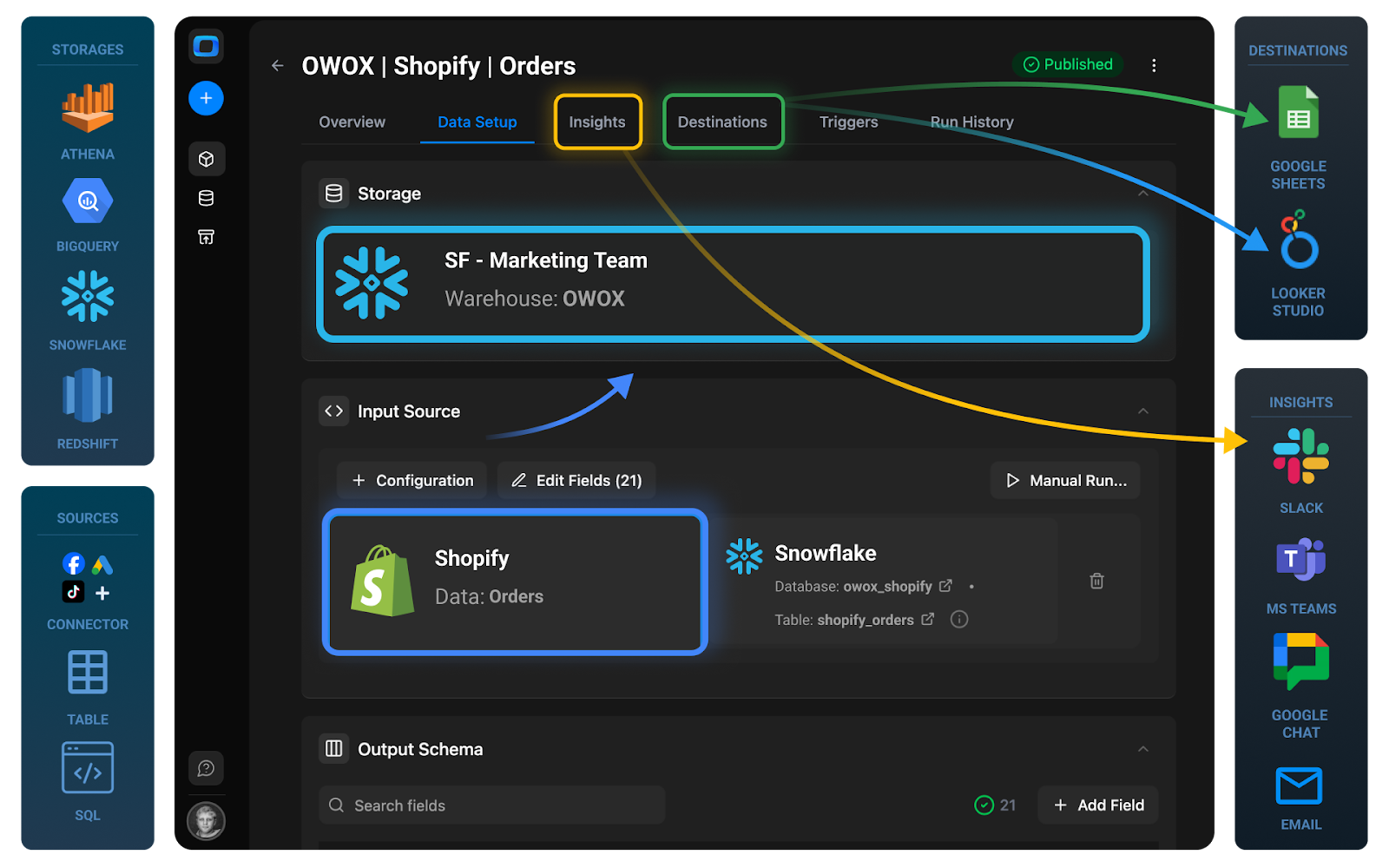
Throughout this tutorial, you will see how Shopify raw data is transformed into governed data marts that separate ingestion from modeling and make ecommerce analytics reusable and scalable.
Why Collect Shopify Data into Snowflake?
Shopify’s native reports are useful for operational insights inside the platform, but limitations appear when analytics expands beyond storefront-level dashboards and into finance, marketing, and executive reporting. Common challenges:
- Limited flexibility in modeling raw order, customer, and transaction data
- Difficulty blending Shopify data with paid media, CRM, or backend systems
- Inconsistent metric definitions across teams
- Manual exports and spreadsheet-based transformations
- Repeated reporting logic across dashboards
Moving Shopify data into Snowflake enables:
- Centralized warehouse storage for orders, customers, refunds, and transactions
- Flexible SQL-based data modeling through governed data marts
- Consistent KPI definitions across revenue, AOV, LTV, and profitability reporting
- Integration with BI tools, Google Sheets, and AI workflows
- Scalable historical storage beyond platform-level constraints
Why Not DIY ETL or Native Shopify Reporting?
Shopify reporting works well for operational monitoring inside the platform, but limitations appear once analytics expands beyond storefront dashboards and into finance, marketing, and cross-channel performance analysis.
Common challenges include:
- Limited flexibility in transforming raw orders, refunds, and transaction data
- Difficulty combining Shopify data with paid media, CRM, or backend revenue systems
- Manual exports and spreadsheet-based transformations
- Repeated reporting logic across dashboards
Basic ingestion scripts or one-off connectors may move Shopify data into Snowflake, but raw tables alone do not create trusted reporting. The real challenge is transforming orders, customers, fulfillment, and financial data into standardized datasets that teams can rely on for revenue analysis, cohort reporting, and profitability tracking.
Why a Data Mart-First Approach Works Better
A structured Shopify data mart inside Snowflake ensures:
- Standardized revenue and order definitions across teams
- Consistent business logic for customers, orders, and transaction states
- Clear separation between raw ingestion tables and reporting-ready views
- Normalized dimensions for products, channels, regions, and currencies
- Reusable reporting views for dashboards, Google Sheets, Looker Studio, and AI workflows
This structure keeps ingestion separate from reporting logic and prevents dashboards from redefining revenue and refund calculations.
Architecture Overview: Shopify to Snowflake
The Shopify to Snowflake flow follows three distinct stages.
Shopify Store Data Extraction
Shopify orders, customers, transactions, fulfillments, and related ecommerce data are retrieved through the official Shopify API on a scheduled basis using OWOX Data Marts.
Loading Shopify Data into Snowflake Loading
Raw Shopify data lands in Snowflake tables that mirror the source structure, preserving full granularity for validation, reconciliation, and troubleshooting. Historical records can be stored and incrementally updated without overwriting prior states.
Re-Using Shopify Data Marts
On top of raw tables, a structured Shopify data mart is built to:
- Standardize revenue, refunds, discounts, taxes, and net sales calculations
- Align customer, order, and product hierarchies
- Publish reporting-ready views for BI tools, Google Sheets, Looker Studio, and AI workflows
Raw Shopify data remains intact in Snowflake, while curated Shopify data marts provide a governed, reusable analytics layer for downstream reporting and decision-making.
Step 1: Connect Snowflake as Your Storage in OWOX Data Marts
The first step in your Shopify → Snowflake pipeline is to configure Snowflake as your primary storage inside OWOX Data Marts. This connection is created once and reused across all data marts, including the one that will ingest Shopify data.
Creating a Snowflake connection in OWOX Data Marts
First, you’ll tell OWOX how to reach your Snowflake account and which credentials to use.
1. Log in to OWOX Data Marts
- Go to https://www.owox.com/app-signup
- Create a workspace if you don’t already have one.
2. Go to the data storages
- In the OWOX Data Marts interface, open the Storages section
- Then click “+ new storage”.
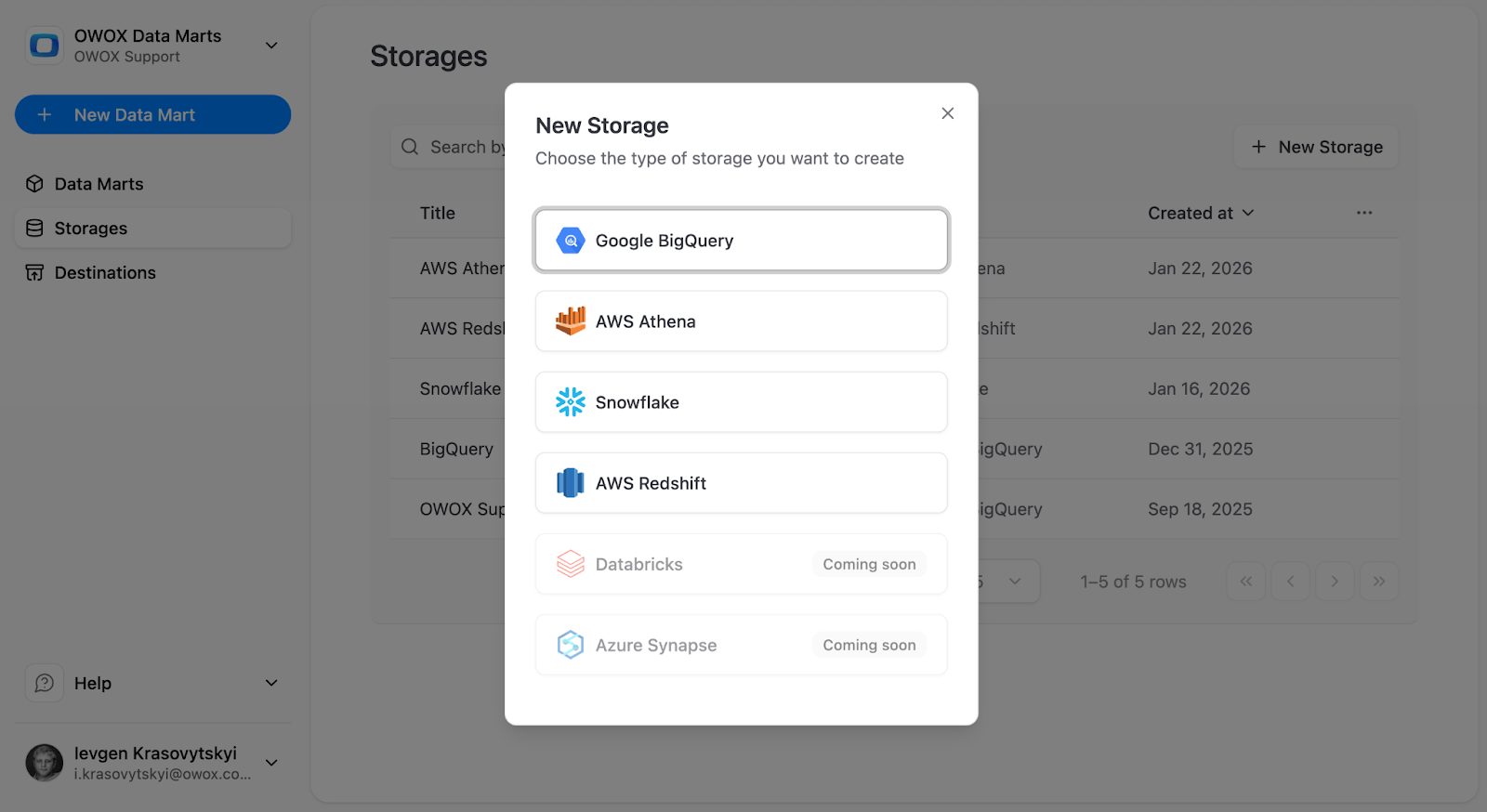
3. Select Snowflake as the storage type
- From the list of available destinations, choose Snowflake.
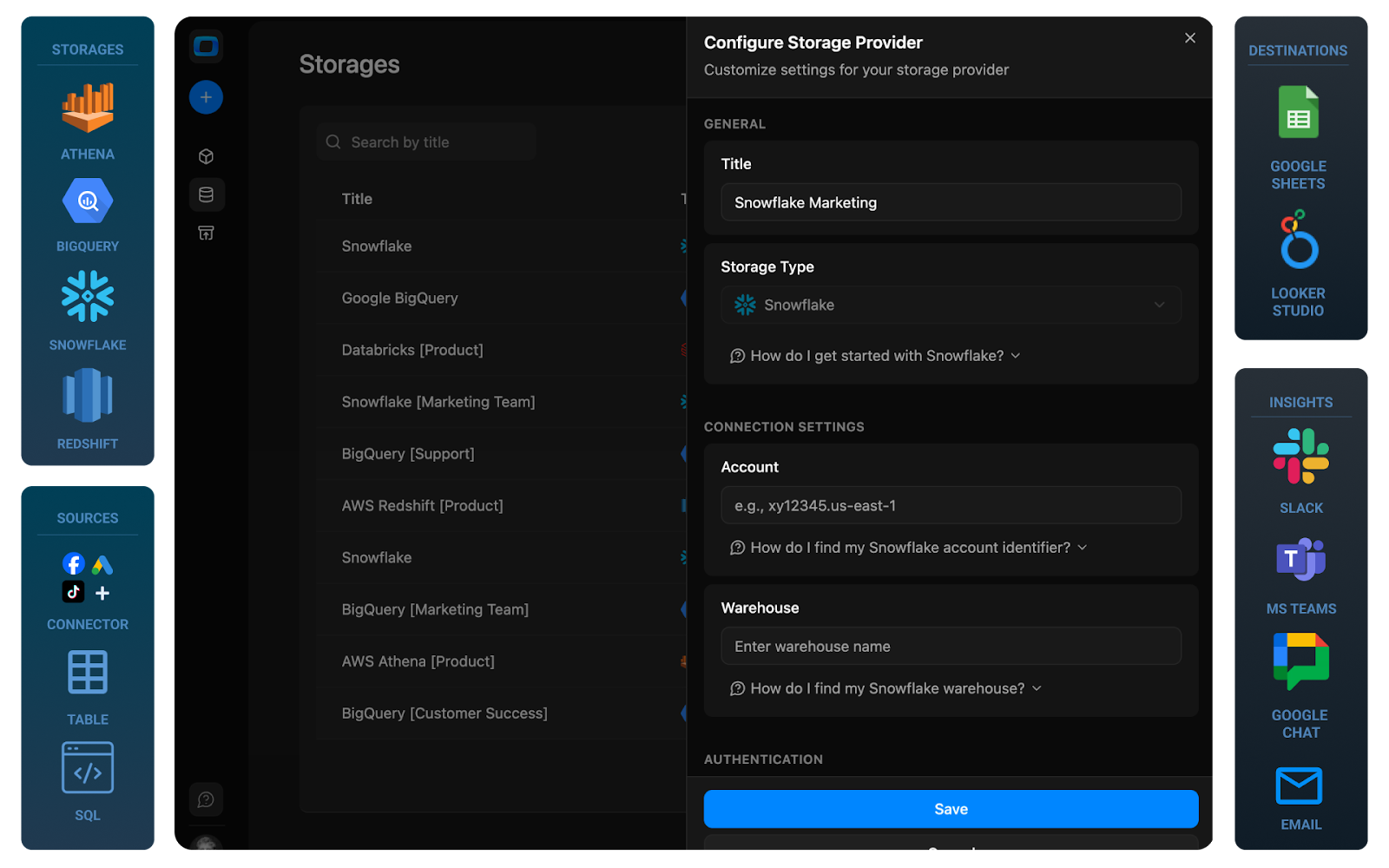
- This opens the Snowflake configuration form, where you’ll enter connection parameters.
4. Enter Snowflake connection details
Provide the required connection parameters:
- Account Locator and Account Identifier (for example, mycompany-xy12345.eu-central-1)
- Warehouse Name (for example, WH_MARKETING_ANALYTICS)
These define where Shopify raw data and data marts will be created.
5. Choose an authentication method
OWOX supports two authentication approaches:
- Password-based (username + password)
- Key-based (requires admin permissions)
Enter:
- A Snowflake username (a dedicated technical user is recommended)
- The corresponding password or key credentials
- Click ‘Save’
Step 2: Create Shopify Orders Data Mart
With Snowflake connected, you can now create a Shopify data mart inside OWOX Data Marts. In this step, you will authorize Shopify access, select the entities to ingest, and configure how data is written into Snowflake.
Authorizing Shopify and Selecting Data Entities
OWOX uses Shopify’s OAuth authorization flow to connect to your store securely. You must log in with a user who has appropriate access to the Shopify store and permission to authorize API access for orders, customers, products, transactions, refunds, and fulfillment data.
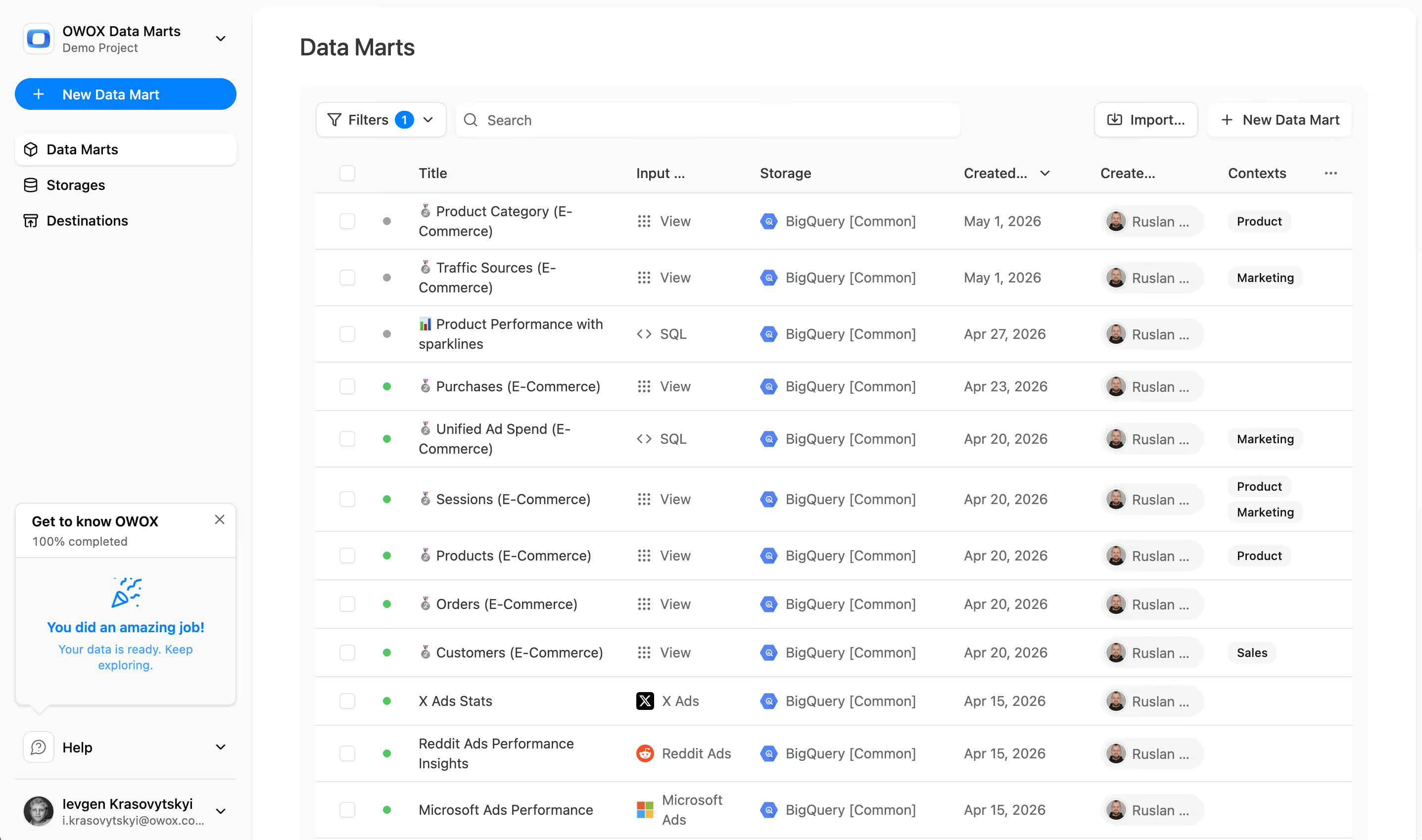
- In the OWOX UI, go to '+ New Data Mart'.
- Give the data mart a clear title, for example, '2026 Shopify Orders'.
- Select Snowflake as the Data Storage.
- Click 'Create Data Mart'.
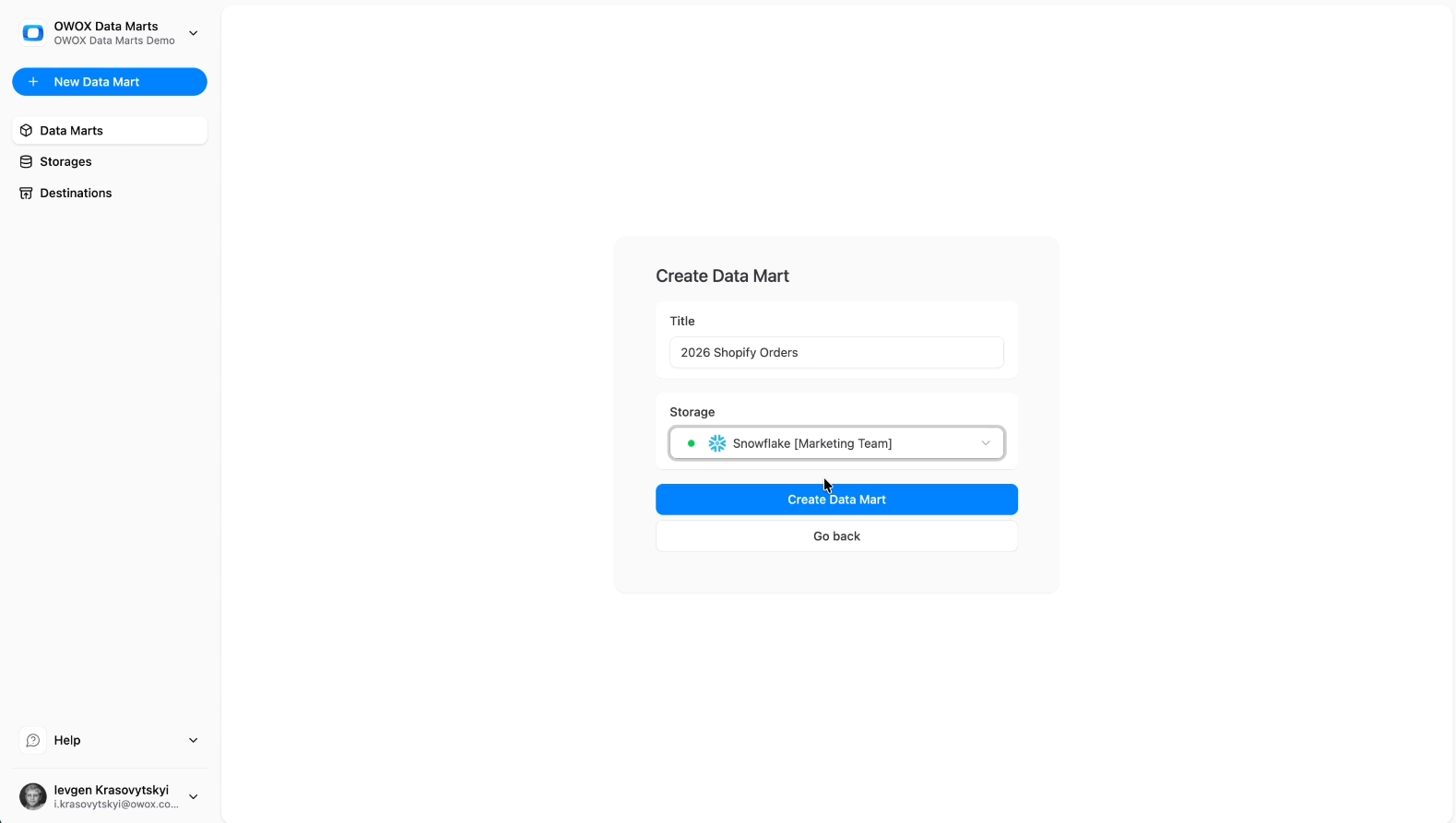
Configure Shopify Orders Data Mart
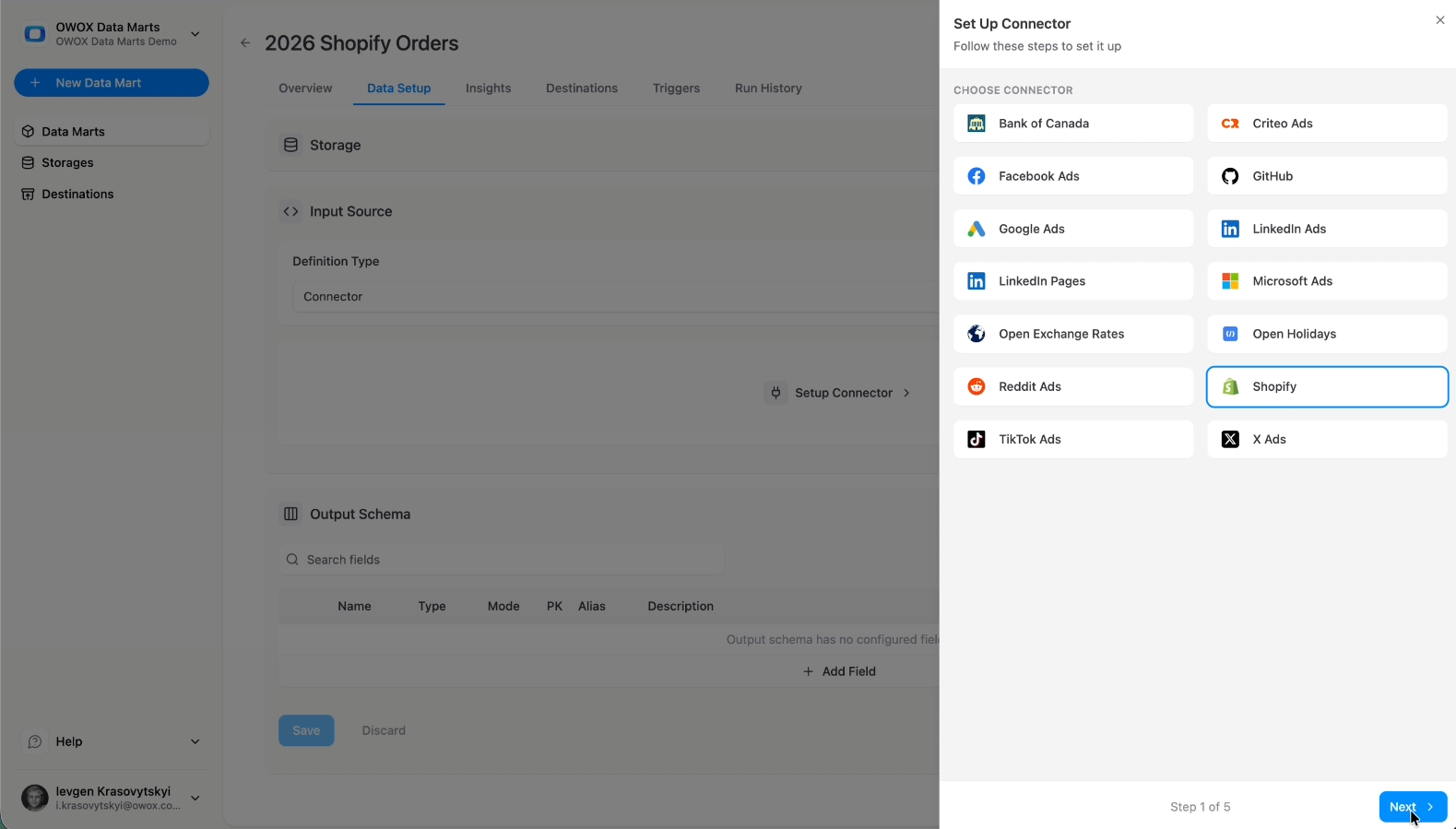
- Select 'Connector' as an 'Input Source'
- Choose 'Shopify' as the 'Connector'
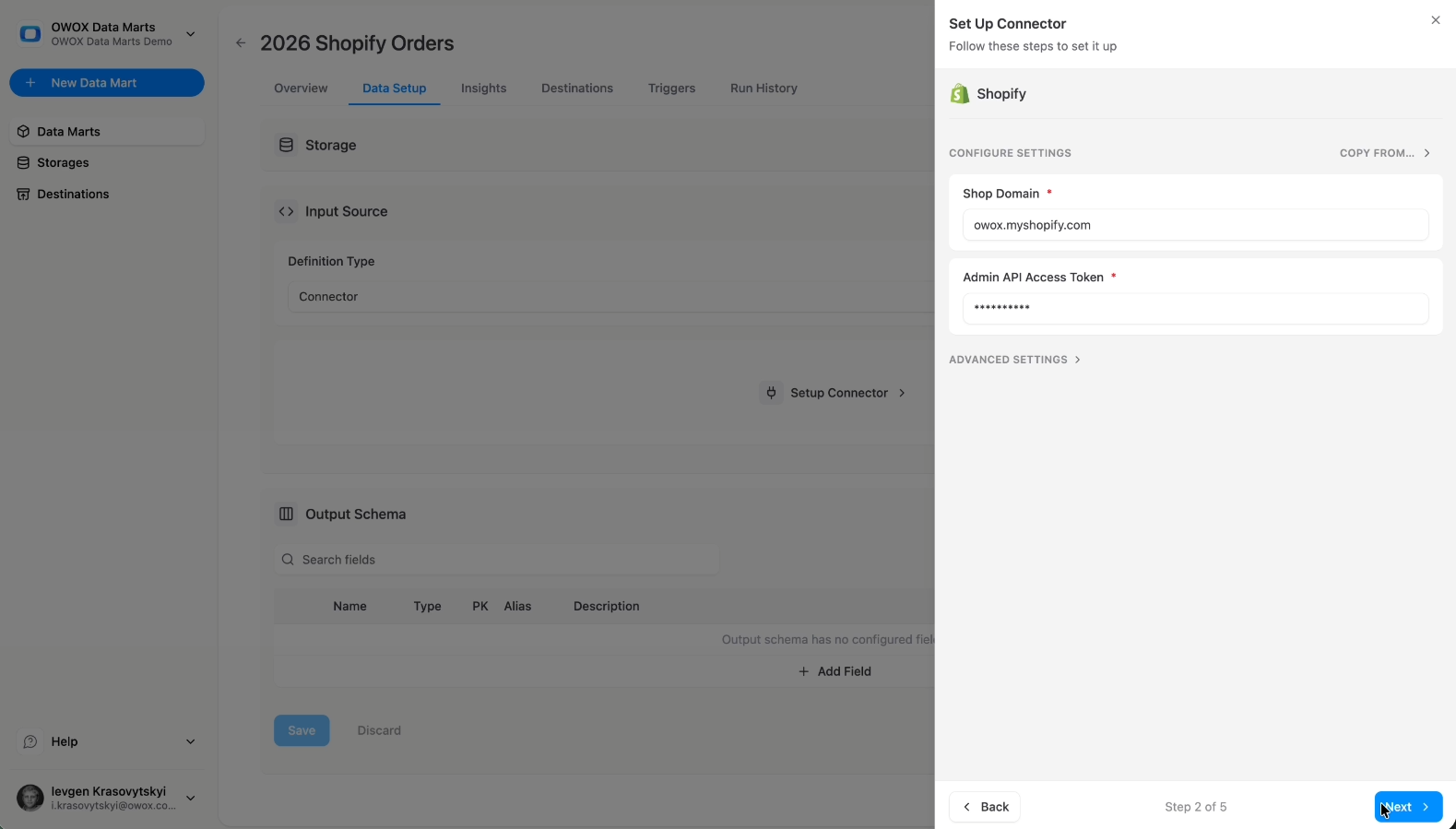
- Enter your Shopify Shop Domain
- Add Admin API Access Token
Note: Refer to the official OWOX documentation for instructions on generating a Shopify Admin API access token and setting required API scopes.
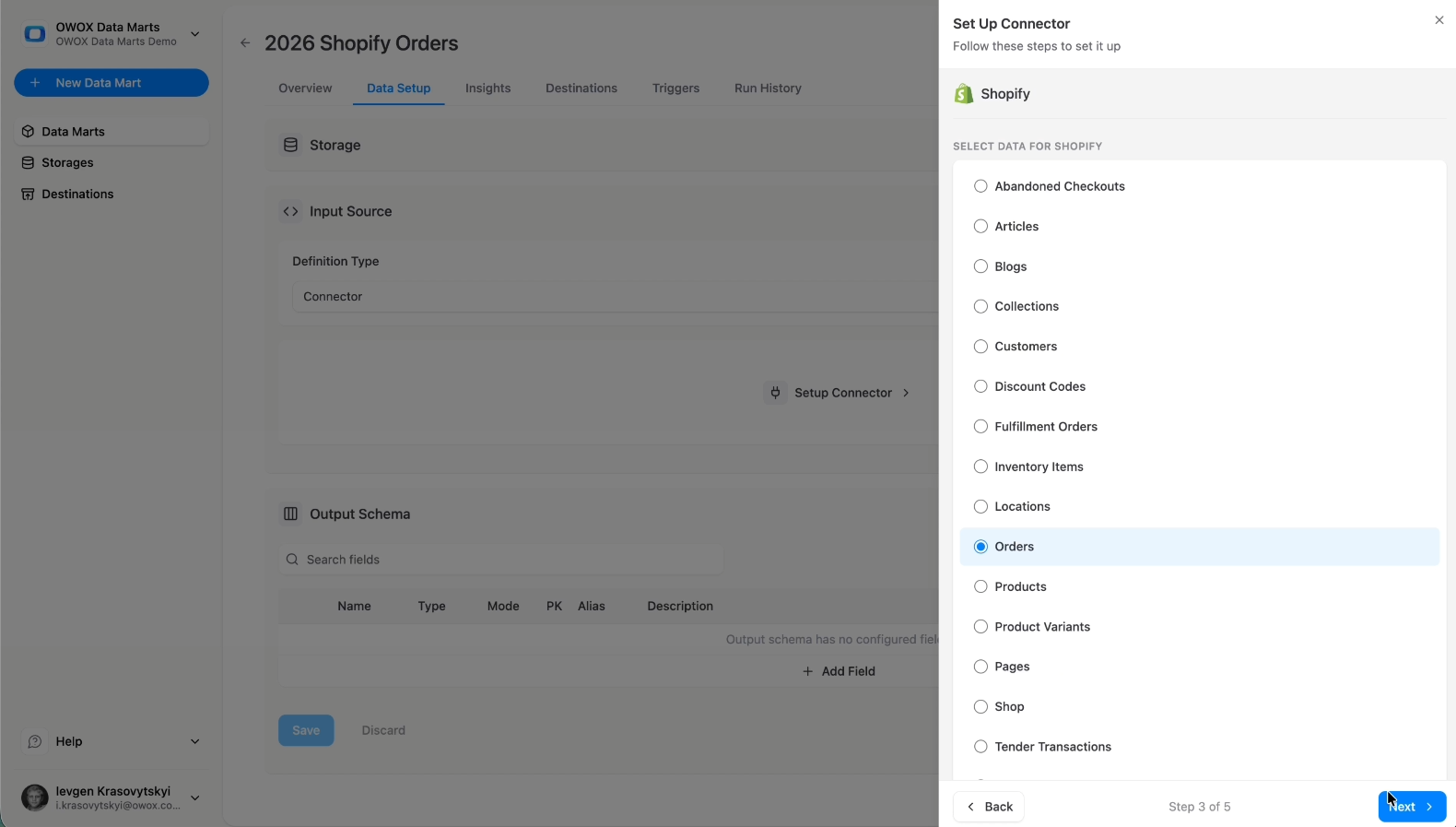
- Select the Shopify entity you want to ingest, such as Orders, Line items, Customers, Transactions, Refunds, and Fulfillments
- Click 'Next'
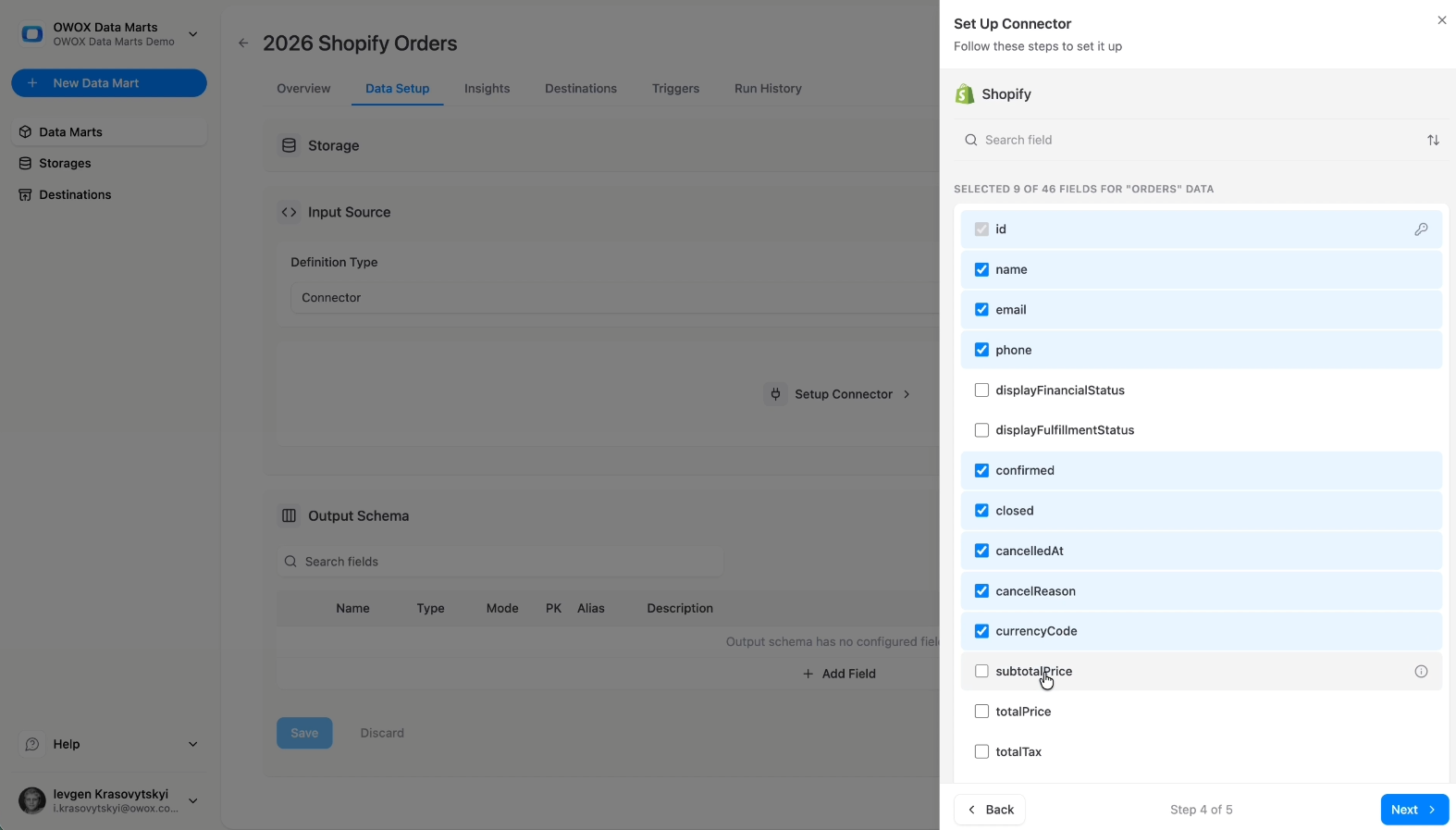
- Select the fields to collect for each entity. For most implementations, enable financial totals, timestamps, status fields, identifiers, customer references, and product attributes.
- Click 'Next'
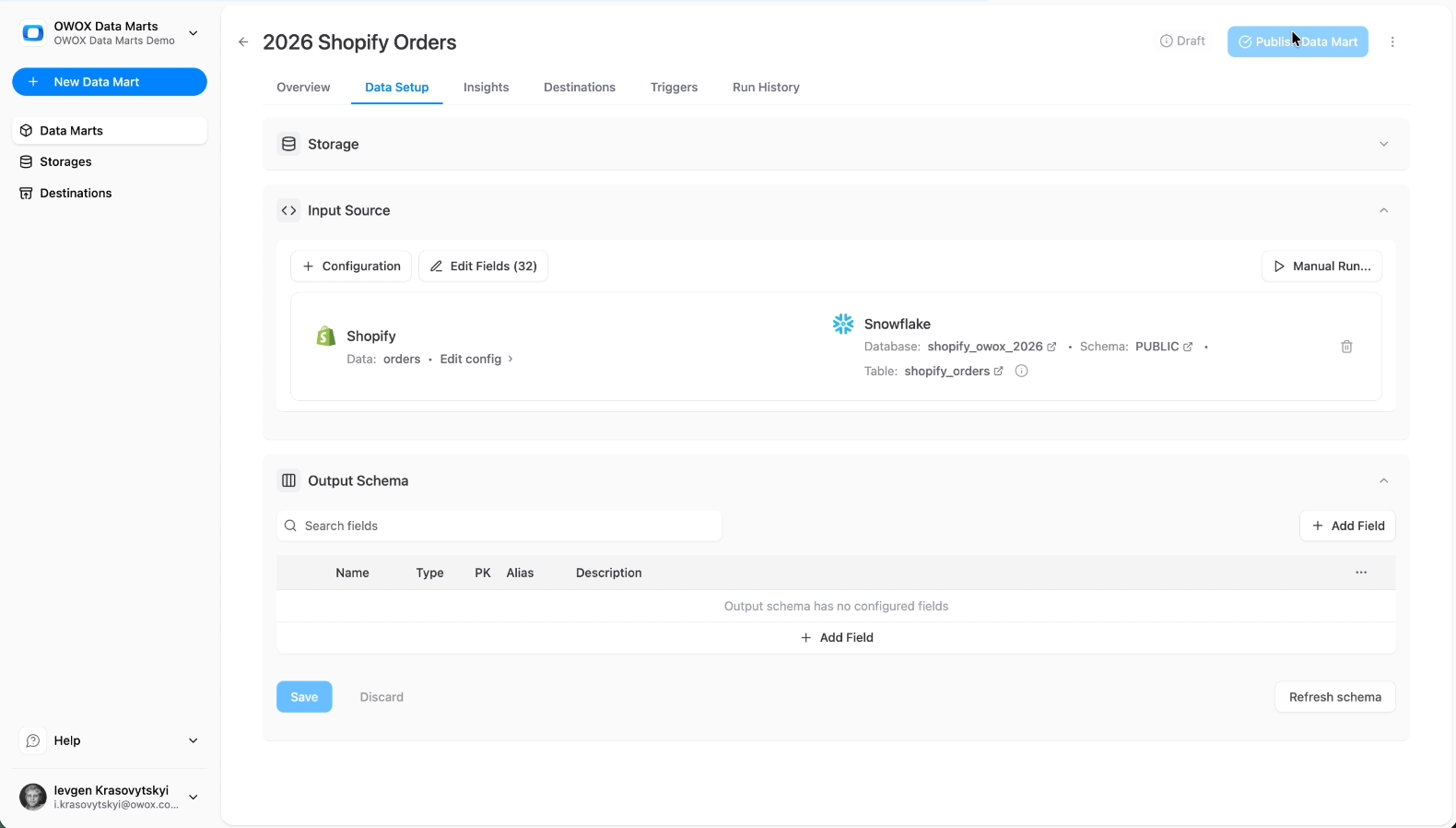
- Select your storage details, such as database, schema, and table.
- You can keep the defaults – the table will be created automatically.
- Click 'Save'
- Then click 'Publish the Data Mart’
Run Your Connector Manually
It’s time to do the first pull to confirm that data is flowing correctly. OWOX connects to the Shopify API and lets you control what gets loaded into Snowflake. After the initial load, validate record counts and revenue totals in Snowflake against Shopify’s native reports to confirm ingestion accuracy before building reporting data marts.
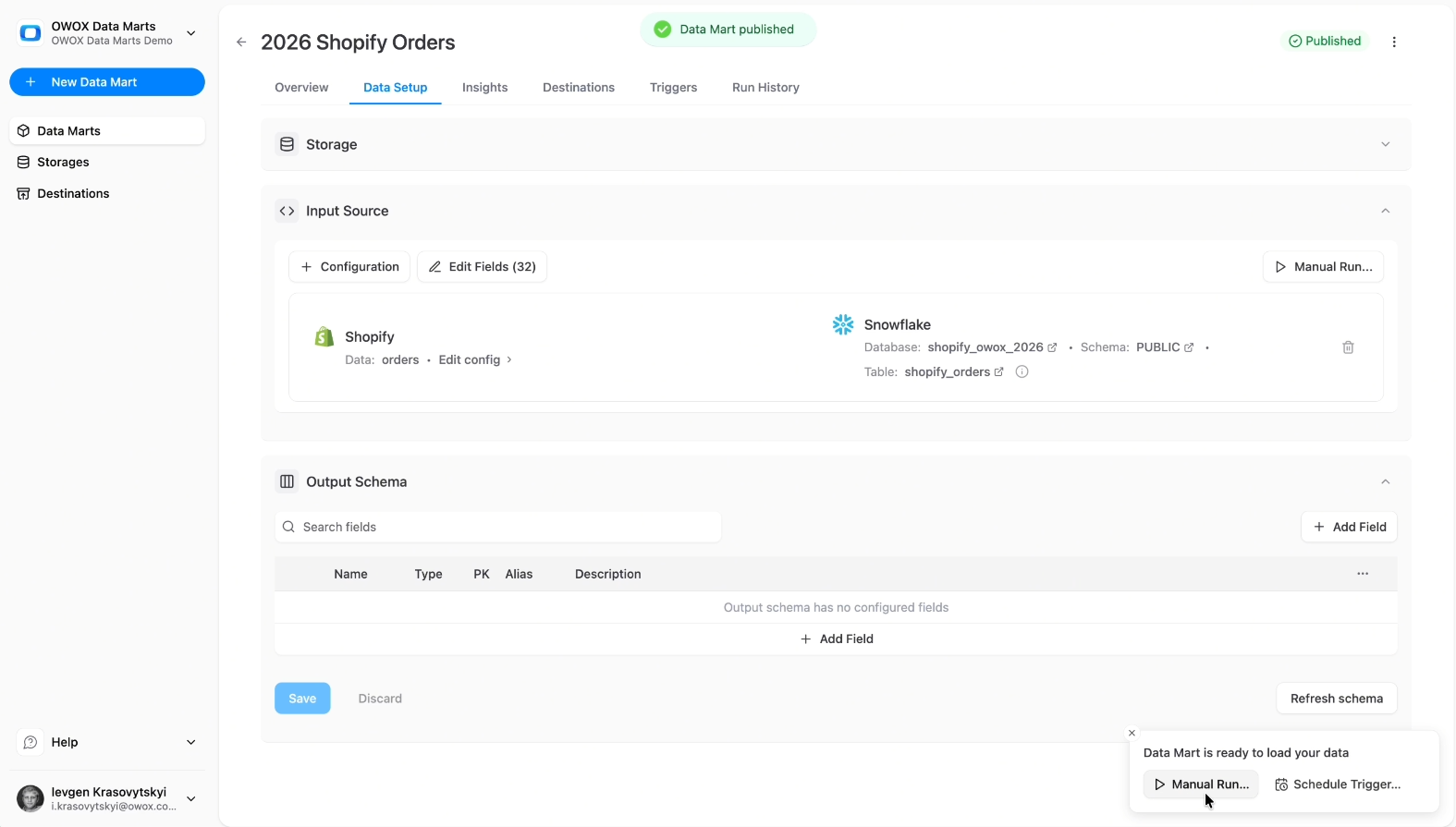
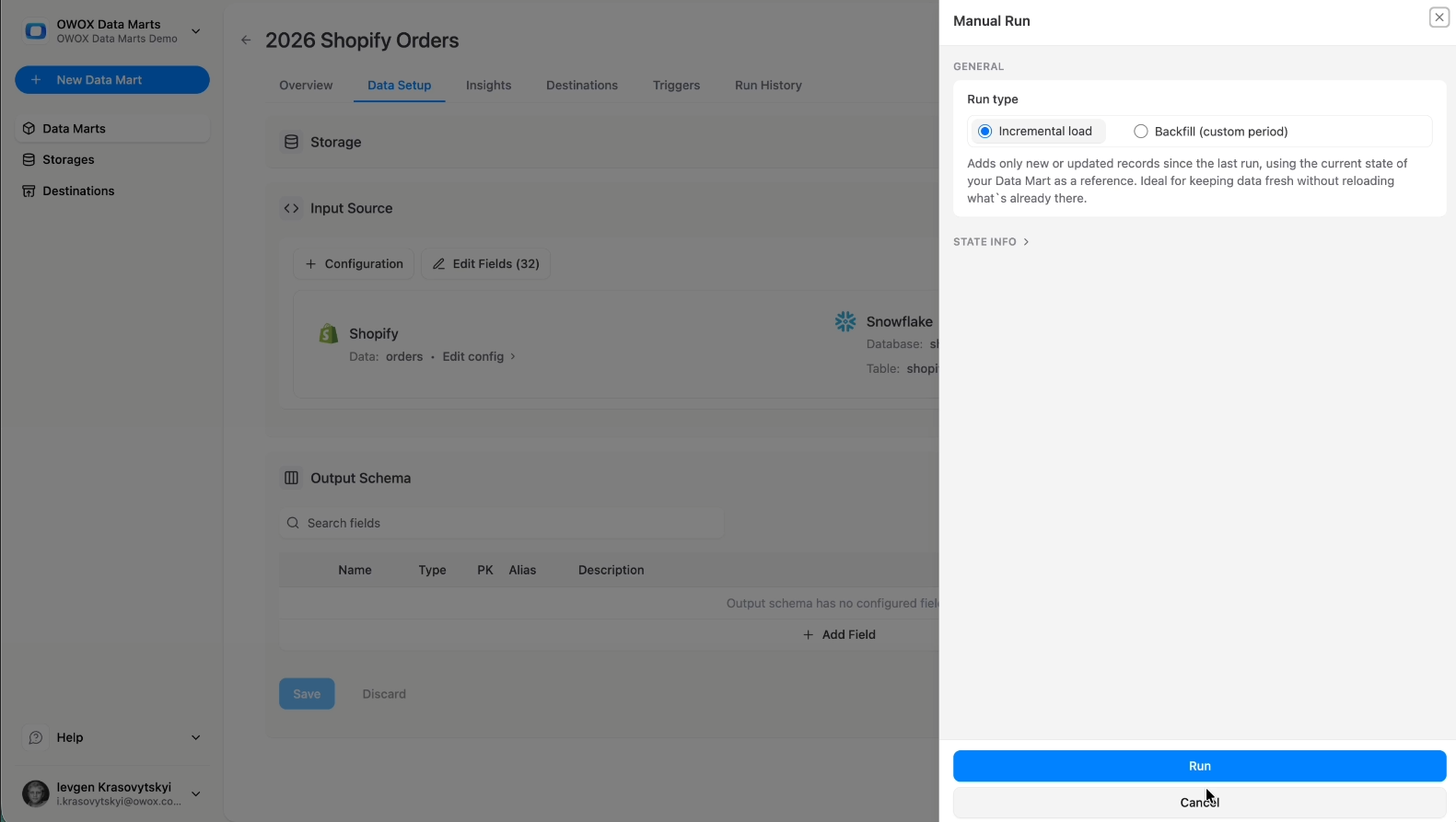
- Click on the 'Manual Run' button
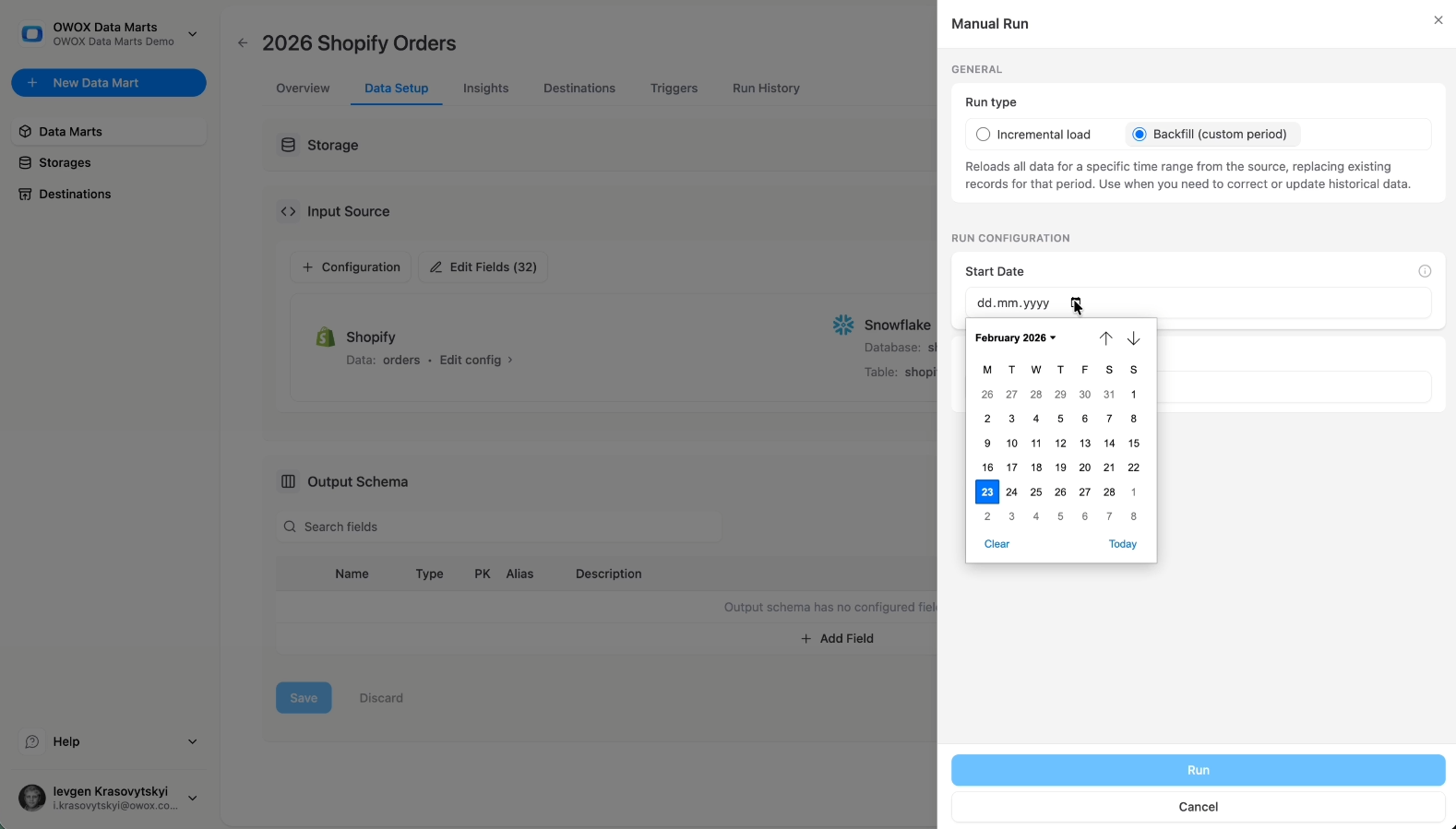
- You'll see two options: Incremental or Backfill
Historical backfill
You decide how far back to load data. Use Backfill if this is your first run, and select the historical window you need. You can choose 3 days, 7 days, 365 days, or 10 years.
Recommendations:
- For an initial setup, 30 days is often a practical balance between historical context and load time.
- Be mindful of API rate limits and data volume, especially for large stores with high order volume.
Incremental load
To handle updated orders, refunds, and transaction adjustments, OWOX supports a rolling lookback window. Example configuration:
- On every run:
- Pull data for today and the last 2 days.
- Overwrite those partitions in Snowflake.
This ensures:
- Late updates, such as refunds or transaction changes, are captured.
- You avoid reprocessing the entire historical dataset each time.
Scheduling
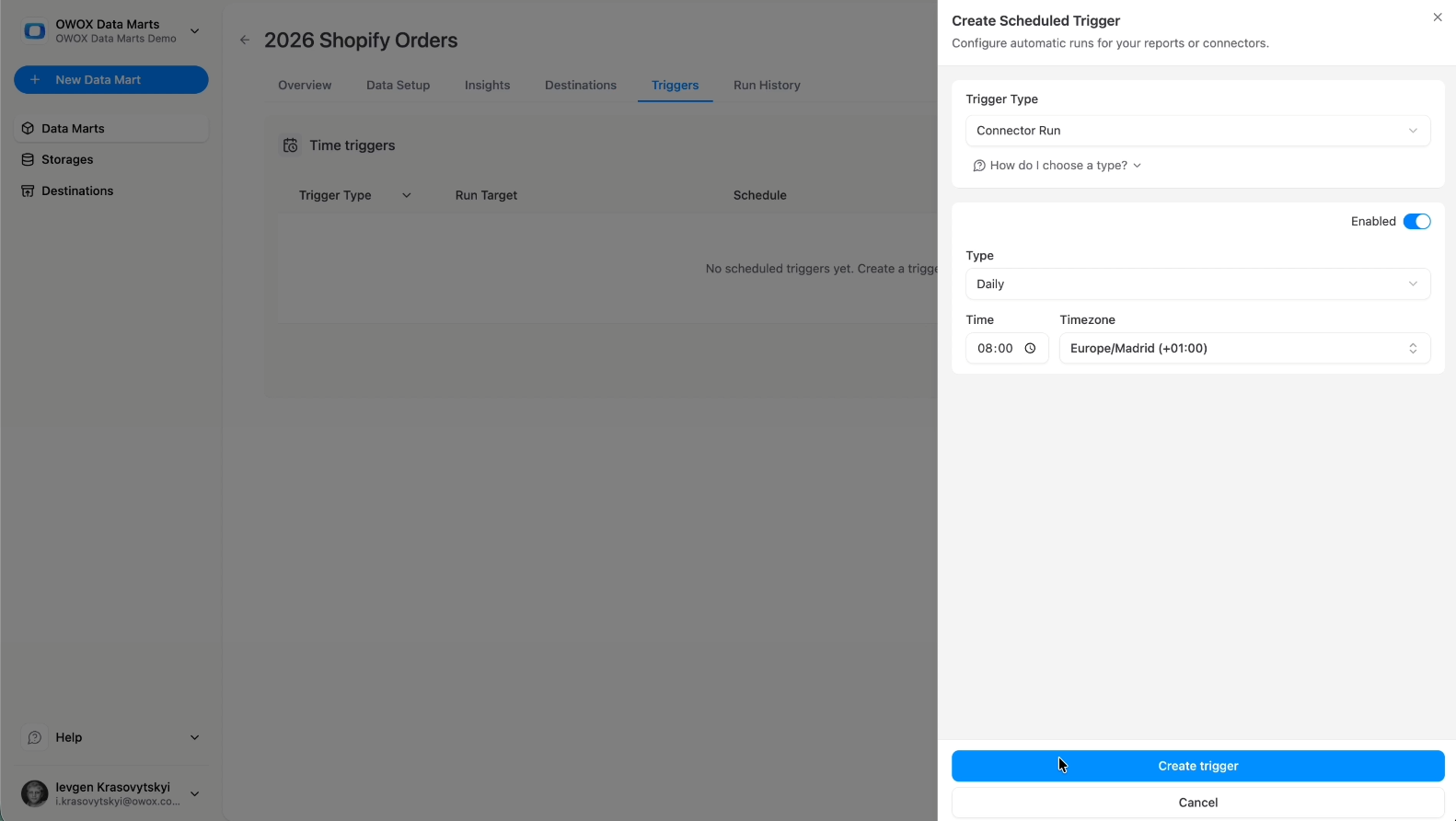
Configure a trigger to automate connector runs. Configure a schedule that keeps recent data refreshed and aligned with business reporting cycles.
Go to the Triggers tab:
- Select Connector Run as a Trigger Type.
- Then configure Frequency:
- Daily (e.g., every night at 02:00) for most reporting needs.
- Intra-day (e.g., every 4 hours or every 15 minutes) if you need near-real-time visibility.
- Align the time zone with your business reporting timezone (for example, the Shopify account timezone).
- Click ‘Create Trigger’ to activate the schedule.
Data Mart Description
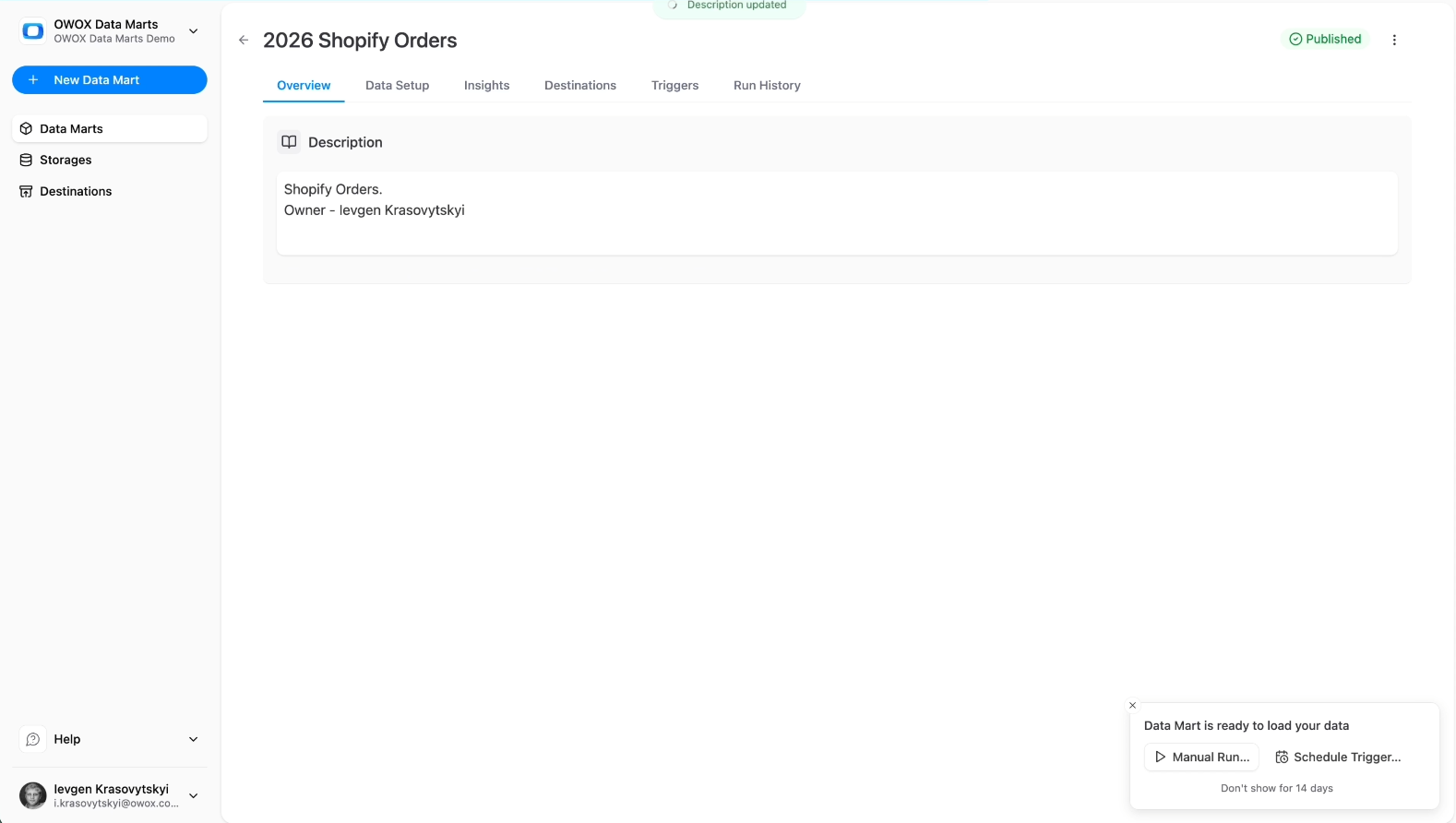
With OWOX Data Marts, you can document your Shopify data mart to keep it organized and easier to manage over time.
Go to the Overview tab and add a clear Description that explains:
- The Shopify data mart contains data such as orders, customers, products, transactions, refunds, and fulfillment data.
- The reporting grain, for example, daily order-level or transaction-level reporting.
- Who owns or maintains the Shopify reporting layer
- Any important modeling notes, such as KPI definitions or cross-channel alignment logic
This step is optional, but documenting your Shopify data marts improves collaboration and makes long-term maintenance significantly easier.
Control
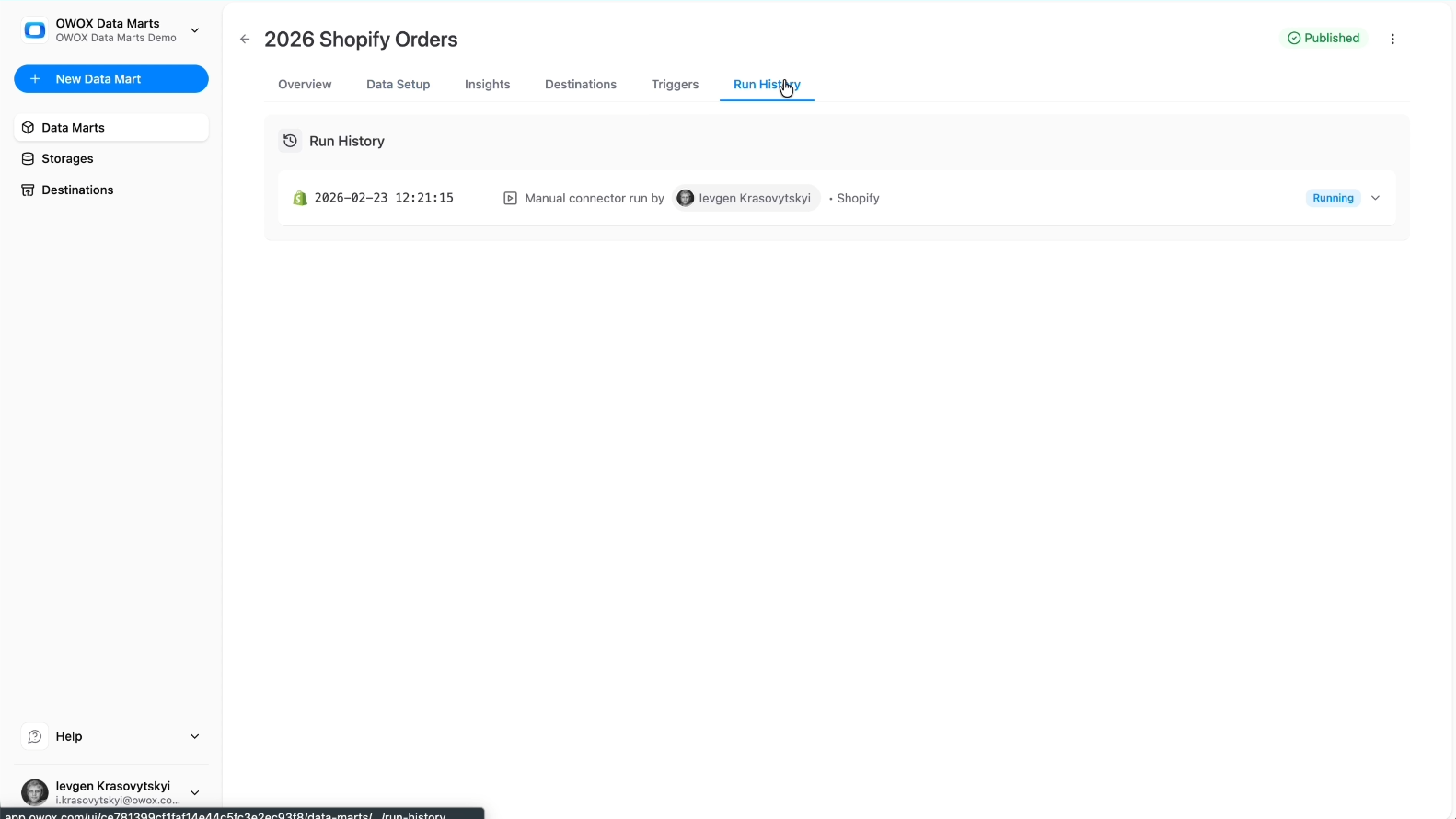
Go to the Run History tab to monitor every execution of your Shopify data mart, covering both connectivity and data processing.
You can review:
- Run status (success, running, failed)
- Start and end time
- Execution duration
- Number of rows processed
- Error details (e.g., expired credentials, permission issues, API limits)
If a run fails, open the logs to identify the issue and re-run the connector after resolving it.
Data Marts Best Practices
When setting up a new Shopify data mart, follow these simple rules:
- Start with a smaller subset, for example, one store or a limited set of entities such as orders only, to validate structure and completeness.
- Add all active Shopify accounts only after you confirm the configuration works as expected.
- Expand fields gradually using ’+ Fields’ so your Snowflake schema updates cleanly.
- Add a clear description once setup is complete to document ownership and reporting scope
After confirming successful runs, proceed to the next step, which is to model this data into reusable Shopify data marts that standardize revenue logic and enable advanced analytics.
Step 3: Re-Use Shopify Data Mart for Reporting
Once your Shopify connector is running and Snowflake is receiving data, the next step is to turn raw ingestion tables into structured, reusable Shopify data marts.
Instead of querying raw API-level tables every time you build a report, you define standardized reporting-ready Shopify data marts that:
- Normalize orders, customers, products, refunds, and line items
- Centralize KPI logic such as GMV, AOV, discounts, refunds, and net revenue
- Separate ingestion logic from reporting logic
- Create a single reusable definition of Shopify ecommerce insights for your company
Your Snowflake warehouse now becomes more than storage. It becomes the structured analytics layer for e-commerce performance.
Connecting Google Sheets and Looker Studio to Your Data Mart
Once your Shopify data mart is built and published, it becomes immediately available for reporting across BI tools.
Because OWOX Data Marts separates ingestion from modeling, business users and analysts do not need to query raw Shopify tables. Instead, they connect directly to structured, reporting-ready Shopify data marts inside Snowflake.
Teams can track revenue, orders, and refunds using structured data marts.
Shopify Report in Google Sheets
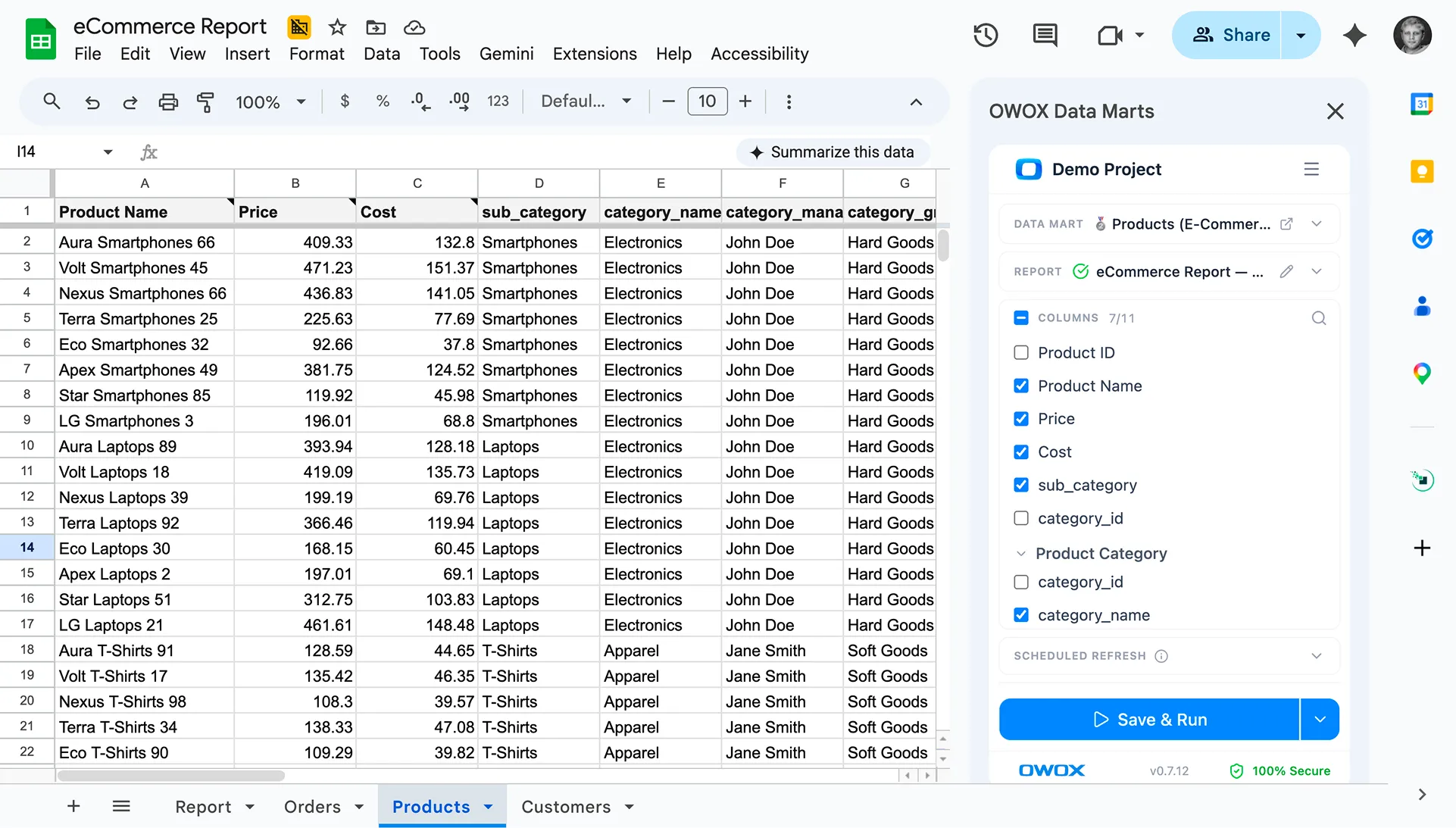
Google Sheets can connect directly to your Shopify data mart using OWOX Reports.
Instead of exporting CSV files from Shopify or manually rebuilding formulas every week, you can:
- Query Snowflake directly from Google Sheets
- Pull structured order, customer, and revenue metrics
- Refresh data automatically
- Reuse standardized KPI definitions
For example, you can build:
- Daily revenue tracking reports
- Order volume monitoring sheets
- Refund trend analysis
- Customer cohort calculations
- AOV and net revenue tracking
All calculations reference the modeled Shopify data mart, not raw ingestion tables. This ensures consistent GMV, refund, and net revenue logic across every spreadsheet.
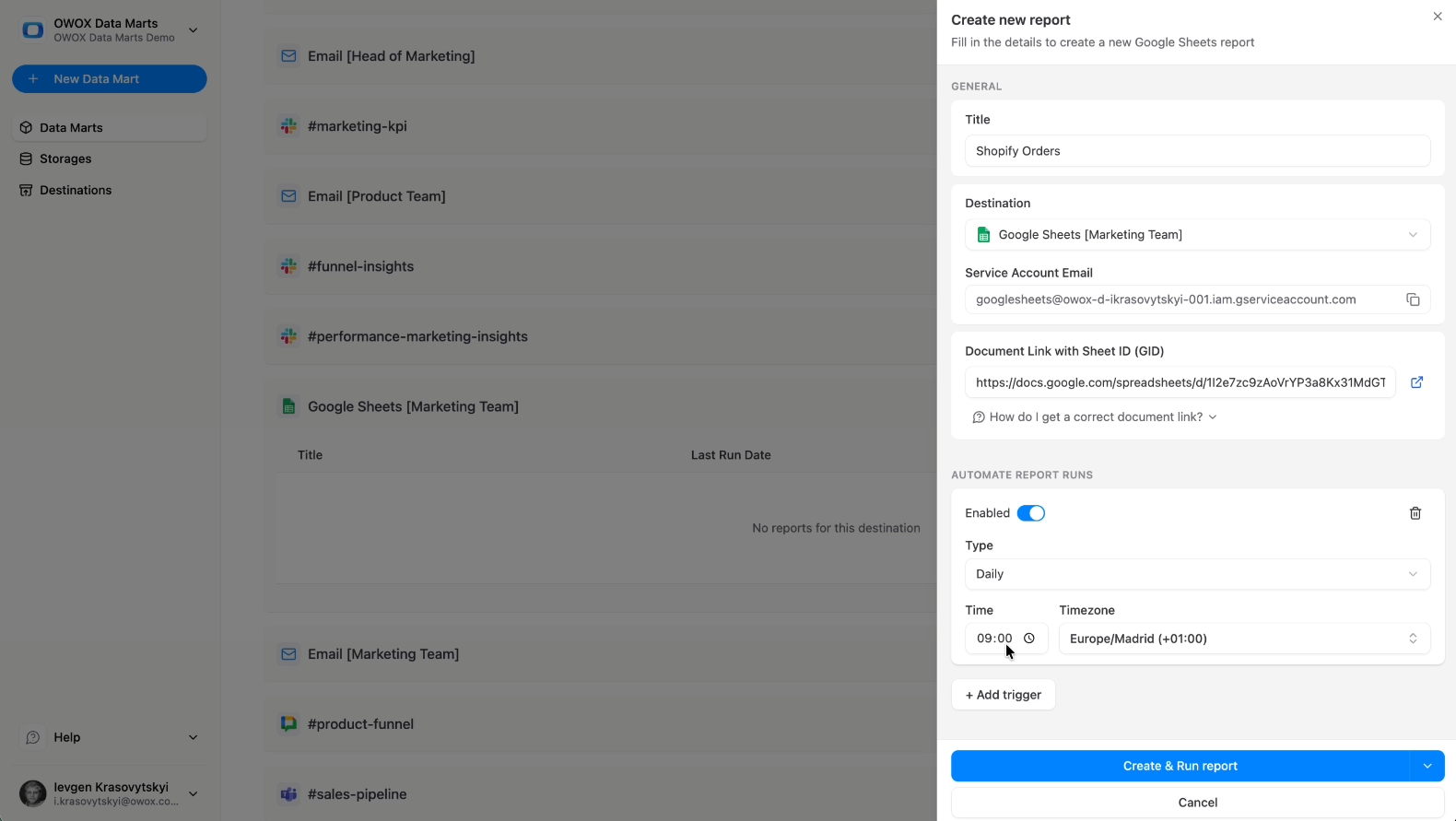
Business teams can build Google Sheets reports directly on structured Shopify data marts without redefining ecommerce formulas.
Connecting Looker Studio
Looker Studio can also connect to Snowflake and query your Shopify data mart. This allows you to build e-commerce dashboards such as:
- Revenue performance dashboards
- Order and refund monitoring views
- Customer acquisition and retention analysis
- Product-level sales breakdowns
Since Looker Studio queries the modeled Shopify data mart, dashboards remain aligned with:
- Standardized revenue definitions
- Normalized order structures
- Consistent refund calculations
Dashboards query the structured Shopify data mart, with transformation logic defined centrally in Snowflake.
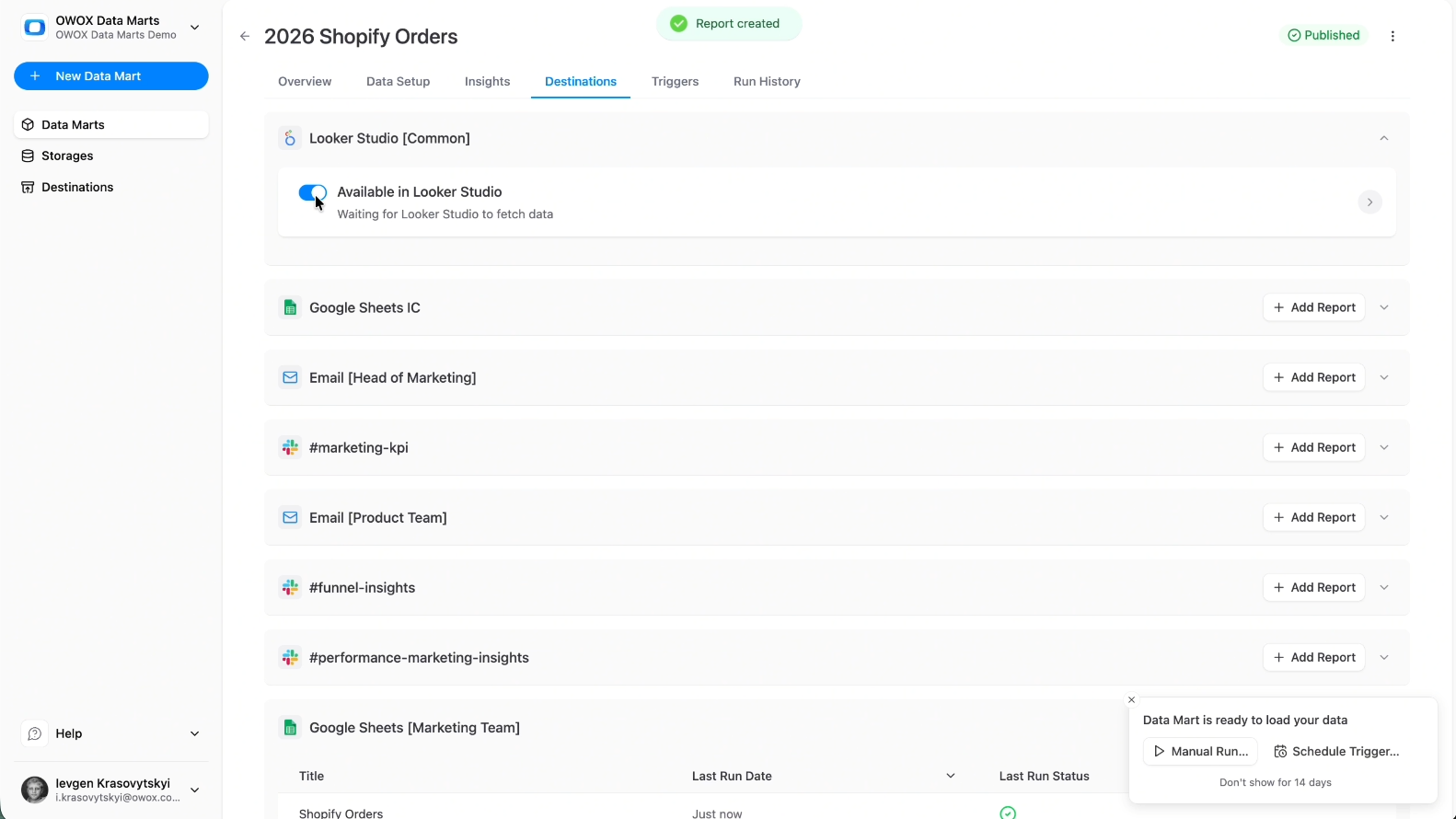
Google Sheets reports, Looker Studio dashboards, and SQL queries reference the same structured Shopify data mart layer.
While BI tools connect directly to structured data marts, it is critical to understand the architectural separation that makes this reporting reliable and scalable.
Define Core Reporting Tables: Orders, Customers, Products, and Line Items
Your Shopify data marts should model the key business entities required for e-commerce reporting. At a minimum, most teams will define data marts around:
- Shopify Orders
- Shopify Customers
- Shopify Products
- Shopify Line items
- Shopify Refunds
- Shopify Transactions
Each data mart should reflect a clear reporting grain. For example:
- Orders data mart: one row per order per day
- Line items data mart: one row per product within each order
- Customer data mart: one row per customer
- Refunds data mart: one row per refund event
This structure ensures that business users do not need to reconstruct joins across raw tables.
The relationships among orders, customers, products, and refunds are defined within Snowflake and reused across dashboards and Sheets.
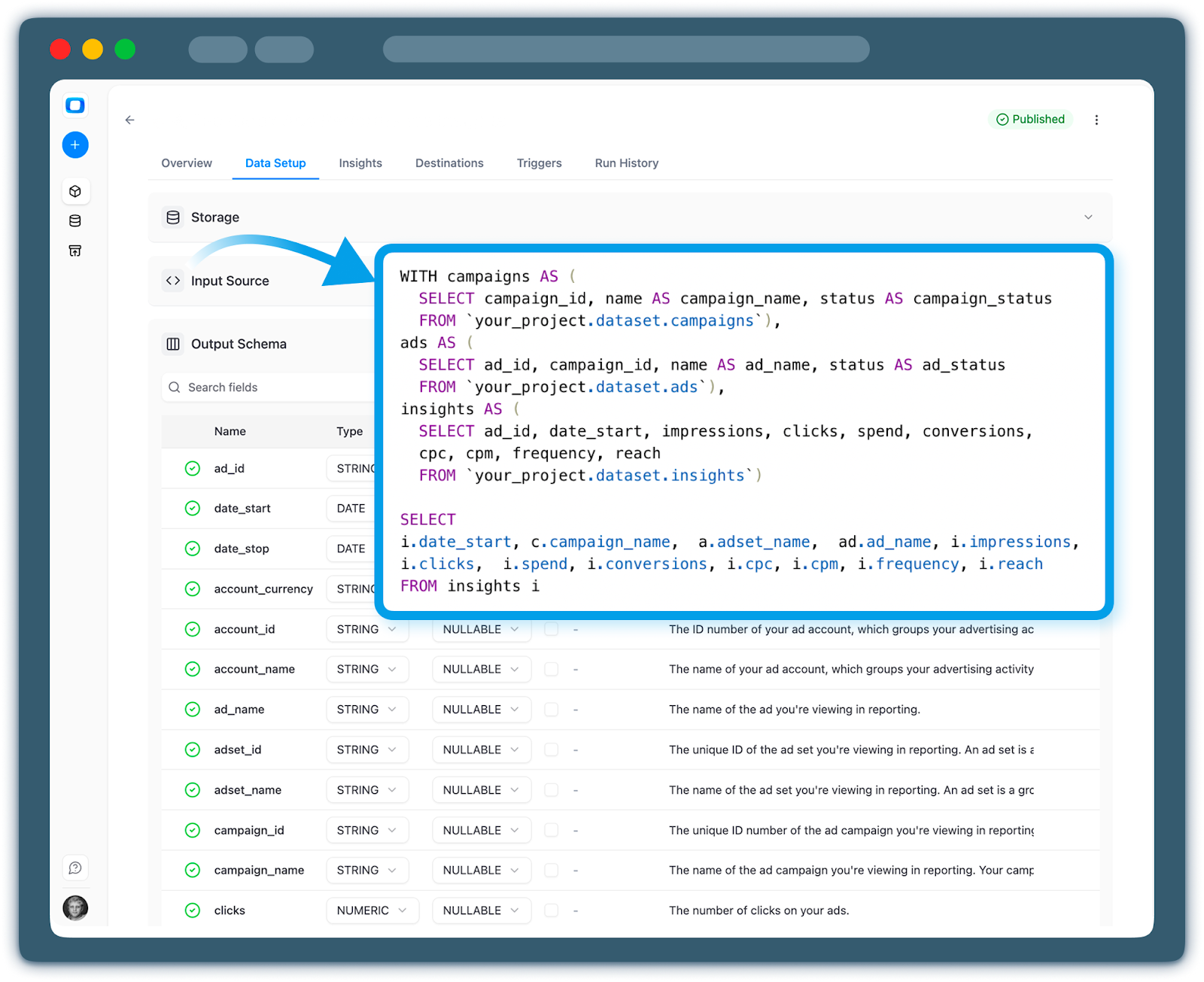
Standardize Metrics: GMV, Discounts, Refunds, and Net Revenue
Raw Shopify tables contain granular transactional data, but analytics requires consistent metric definitions.
Inside your Shopify data marts, centralize calculations such as:
- Gross Merchandise Value
- Discounts applied
- Refund amounts
- Taxes
- Net revenue
- Average Order Value
For example:
- GMV should reflect the total order value before refunds
- Net revenue should account for refunds and discounts
- AOV should be calculated consistently at the correct aggregation level
By defining these calculations inside Snowflake, you eliminate duplicated logic across BI tools and spreadsheets. These calculations are defined once in the data mart and reused across reports.
Document Data Marts with Descriptions and Field Aliases
Add descriptions and field aliases to document reporting logic. Inside OWOX Data Marts, you can add:
- A clear description explaining what the Shopify data mart contains
- The reporting grain
- Ownership information
- Notes about metric definitions
- Field aliases for business-friendly naming
For example, instead of exposing raw API field names, you can provide readable column names such as:
- order_date
- customer_email
- gross_revenue
- refund_amount
- net_revenue
This step is optional from a technical standpoint, but strongly recommended for collaboration. Documented Shopify data marts reduce onboarding time for analysts, prevent misinterpretation of metrics, and support long-term maintainability. With structured Shopify data marts in place, teams can focus on business insights.
Below are practical examples of how standardized Shopify data marts support revenue analysis, refund tracking, cohort reporting, and cross-functional decision-making.
Once reporting tables and metric definitions are established, analysts can query the Shopify data marts directly to answer specific business questions.
Example Analytics Use Cases for Shopify Data
Because metrics such as GMV, refunds, discounts, and net revenue are standardized inside Snowflake, teams can build reporting without redefining logic in every dashboard or spreadsheet.
Below are practical examples of how Shopify data marts can be used for analysis.
1. Revenue Trend Analysis
Business question: How is revenue trending over time when calculated with consistent definitions?
This analysis queries the structured Orders data mart, where gross revenue, discounts, refunds, and net revenue are already defined at the correct reporting grain.
This includes:
- Gross revenue tracking
- Net revenue after refunds and discounts
- Order volume trends
- Average Order Value over time
Revenue reporting can be generated directly from structured Shopify data marts in Snowflake using consistent metric definitions.
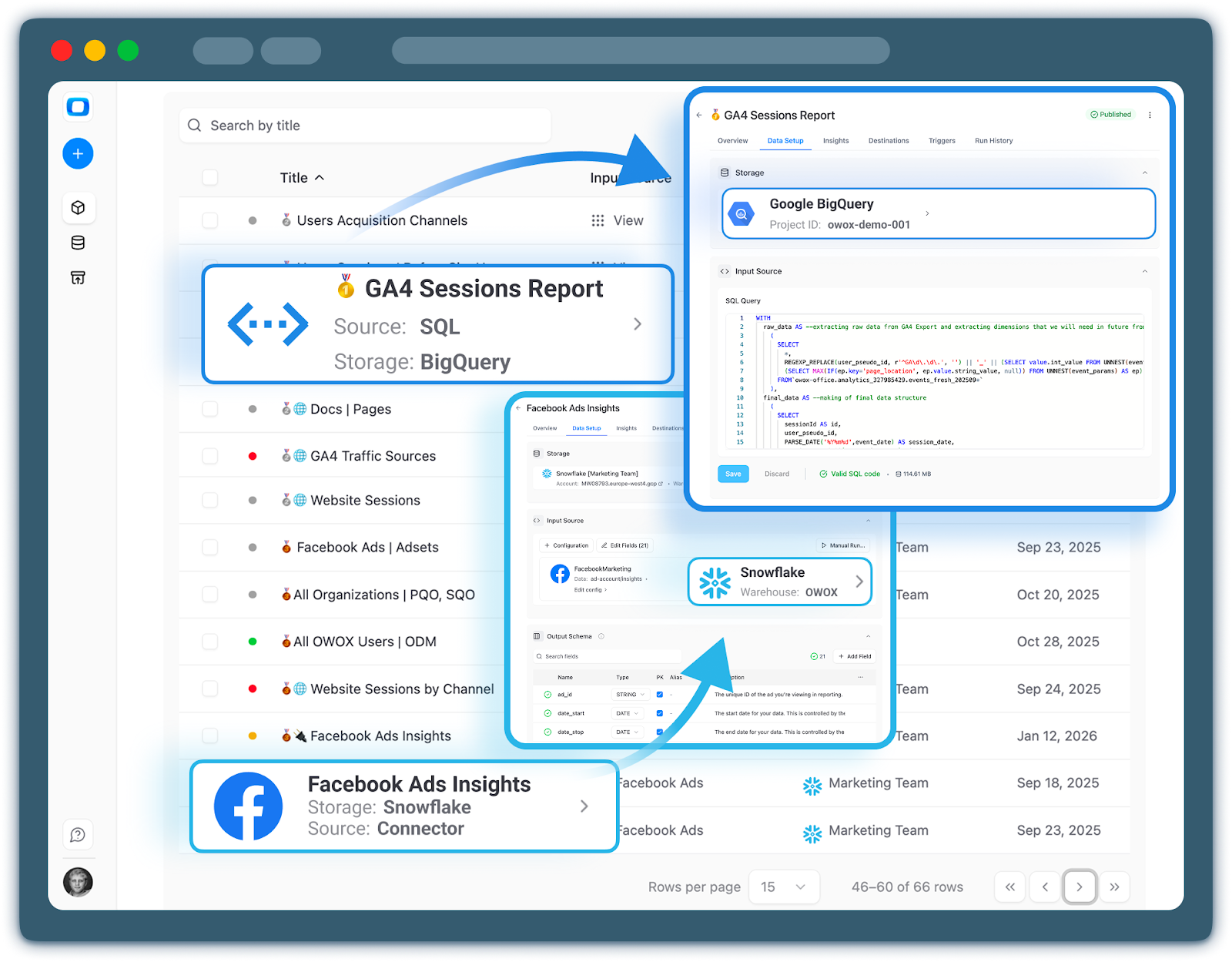
2. Refund Impact on Net Revenue
Business question: How do refunds affect net revenue and product profitability?
Because refund logic is centralized inside the data mart, net revenue reflects both discounts and refund adjustments consistently.
Now, teams can analyze:
- Total refunds by day or product
- Refund rate as a percentage of revenue
- Net revenue after refund adjustments
- Products with high refund ratios
Refund calculations remain consistent across Sheets, Looker Studio, and SQL queries because they reference the same structured data mart.
3. Customer-Level Purchase Analysis
Business question: How does customer behavior impact revenue and retention?
The Customer and Orders data marts allow structured joins without rebuilding raw API relationships.
Teams can evaluate:
- Repeat purchase behavior
- Revenue per customer
- Average Order Value by customer segment
- Purchase frequency over time
This supports retention reporting, customer segmentation, and lifecycle analysis while maintaining consistent metric definitions.
4. Product-Level Sales Performance
Business question: Which products drive revenue and which create refund risk?
The Line Items and Orders data marts define product-level revenue and refund attribution at the correct grain.
This includes:
- Top-selling products by revenue
- Revenue by SKU or product category
- Discount impact by product
- Refund rate by product
Since the reporting grain is defined inside the data mart, dashboards and spreadsheets no longer require complex joins between orders and line items.
Step 4: Configure AI Insights on Structured Shopify Data
With your Shopify data mart standardized in Snowflake, the next step is to activate AI Insights on top of curated Shopify tables in Snowflake.
AI Insights does not modify your Snowflake data. It reads from the structured data mart layer and produces interpretive summaries only.
Instead of manually reviewing revenue dashboards and refund reports, your team receives structured insights derived from standardized ecommerce tables. This shifts your workflow from reactive reporting toward proactive revenue and performance monitoring.
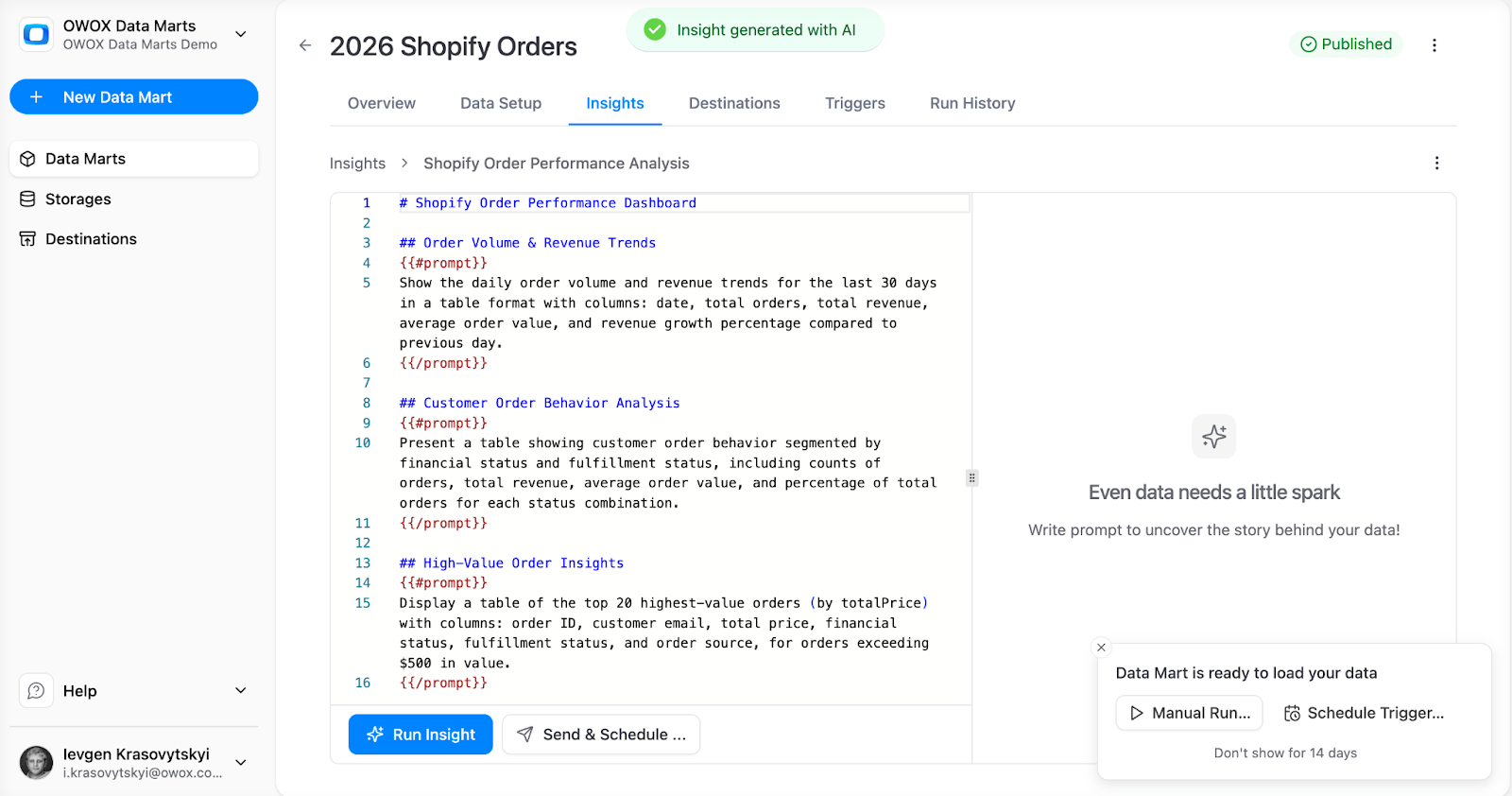
Configuring AI Insights
AI Insights should always query the curated Shopify data mart layer rather than raw ingestion tables.
Select the Shopify data mart you created earlier (or create a new one and use SQL as the input source).
- Then go to the Insight tab.
- Add your prompts.
- Click Save & Run Insight.
Designing Prompts
1. Frame the AI’s Role
Define what AI should monitor within your e-commerce analytics.
Typical focus areas include:
- Net revenue changes
- Refund rate fluctuations
- Order volume shifts
- Average Order Value trends
- Product-level performance variations
AI evaluates defined metrics and generates summaries based on configured comparisons.
2. Specify Focus Metrics
Select metrics directly from your Shopify data marts, such as:
- Gross revenue
- Net revenue
- Refund amount
- Discount totals
- Order count
- AOV
These metrics are pulled directly from the data mart, ensuring consistency with existing reports.
3. Provide Additional Business Context
AI outputs are most useful when aligned with business context, such as:
- Comparing current revenue to previous periods
- Monitoring refund percentage changes
- Identifying unusual discount spikes
- Tracking sudden order volume deviations
Summaries remain aligned with configured comparisons.
4. Run it Once to See How it Goes
Just hit on “Save & Run Insight” and see what the insights might look like.
5. Make Outputs Meaningful
Well-structured insights should clearly explain:
- What changed
- The magnitude of change
- The affected metric
- The relevant time window
Separating revenue, refund, and customer-related insights helps stakeholders quickly understand the area impacted.
Delivering Scheduled Shopify Insights into Slack, Teams, and Email
After configuring AI Insights, you can schedule summary delivery to collaboration platforms.
Insights can be sent to:
- Slack
- Microsoft Teams
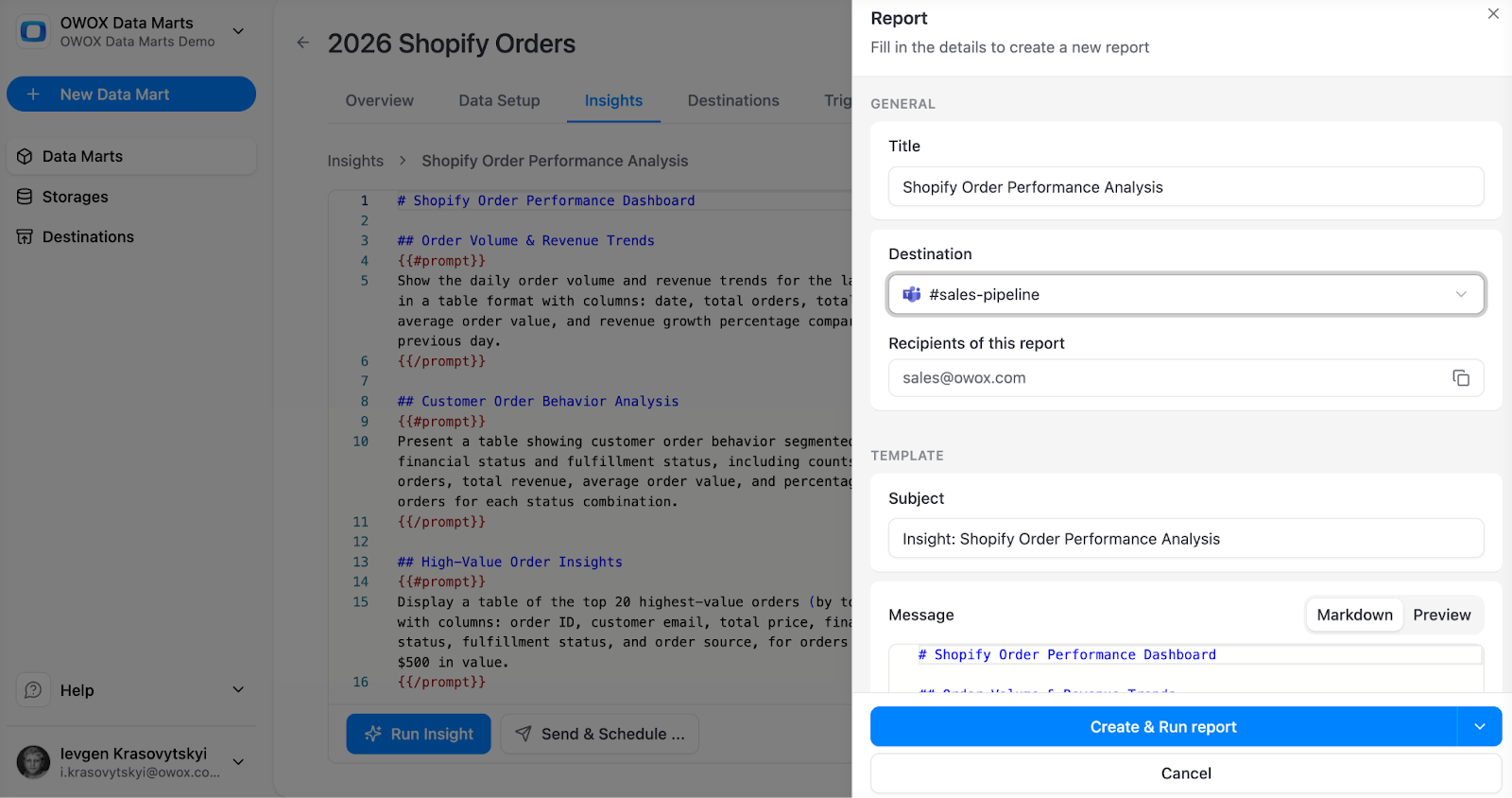
Examples include:
- Daily revenue summaries
- Weekly refund impact reports
- Alerts when net revenue crosses defined thresholds
- Notifications for unusual changes in AOV or order volume
These summaries reference the same Shopify data marts used for reporting.
1. Configure Delivery Channels
- Click on “Send & Schedule”, add a destination like Slack channels or DMs, Microsoft Teams chats, or simply add an email address of the stakeholder (s).
- Click on “Create & Run report”.
2. Tailor Frequency and Timing
Configure delivery frequency to match business needs:
- Daily summaries
- Weekly performance updates
- Intra-day alerts for significant metric shifts
Align scheduling with your Shopify store’s reporting timezone. When configuring higher-frequency schedules, consider Shopify API rate limits and order volume to avoid throttling during peak activity periods.
3. Continuously Improve Monitoring
As business priorities evolve, refine your prompts, thresholds, and focus metrics to keep insights relevant.
Because data ingestion and modeling remain separate from insight delivery, updating AI monitoring rules does not require reconnecting Shopify sources or rebuilding your data marts.
Start Centralizing Your Shopify Data in Snowflake
You now have a structured workflow to centralize Shopify data in Snowflake.
By connecting Shopify to Snowflake through OWOX Data Marts, you can:
- Automate Shopify → Snowflake ingestion for orders, customers, products, refunds, transactions, and fulfillments
- Build reusable Shopify data marts with standardized ecommerce metric definitions across revenue and profitability reporting
- Blend Shopify ecommerce data with marketing, finance, CRM, and backend datasets inside Snowflake
- Deliver consistent reports to Google Sheets, Looker Studio, BI tools, and AI-driven monitoring workflows
- Enable consistent revenue tracking, refund analysis, cohort reporting, and profitability analysis
Define ecommerce logic inside Shopify data marts and reuse it across reporting tools. With Snowflake as your warehouse and OWOX Data Marts managing ingestion and modeling, Shopify data remains structured and continuously updated.
If you are ready to centralize your Shopify data in Snowflake and turn it into trusted, reusable analytics, you can start using OWOX Data Marts today.
Frequently asked questions




Finally, a tool that doesn't ask business users to learn a new dashboarding UI. Our marketing team already knows Sheets. OWOX just delivers the right data.
Joinable data marts concept was the thing that sold us. We can now use the semantic layer without building one.
Self-hosted the OSS version on Digital Ocean. Zero vendor lock-in. Contributed a Shopify connector back in week two.